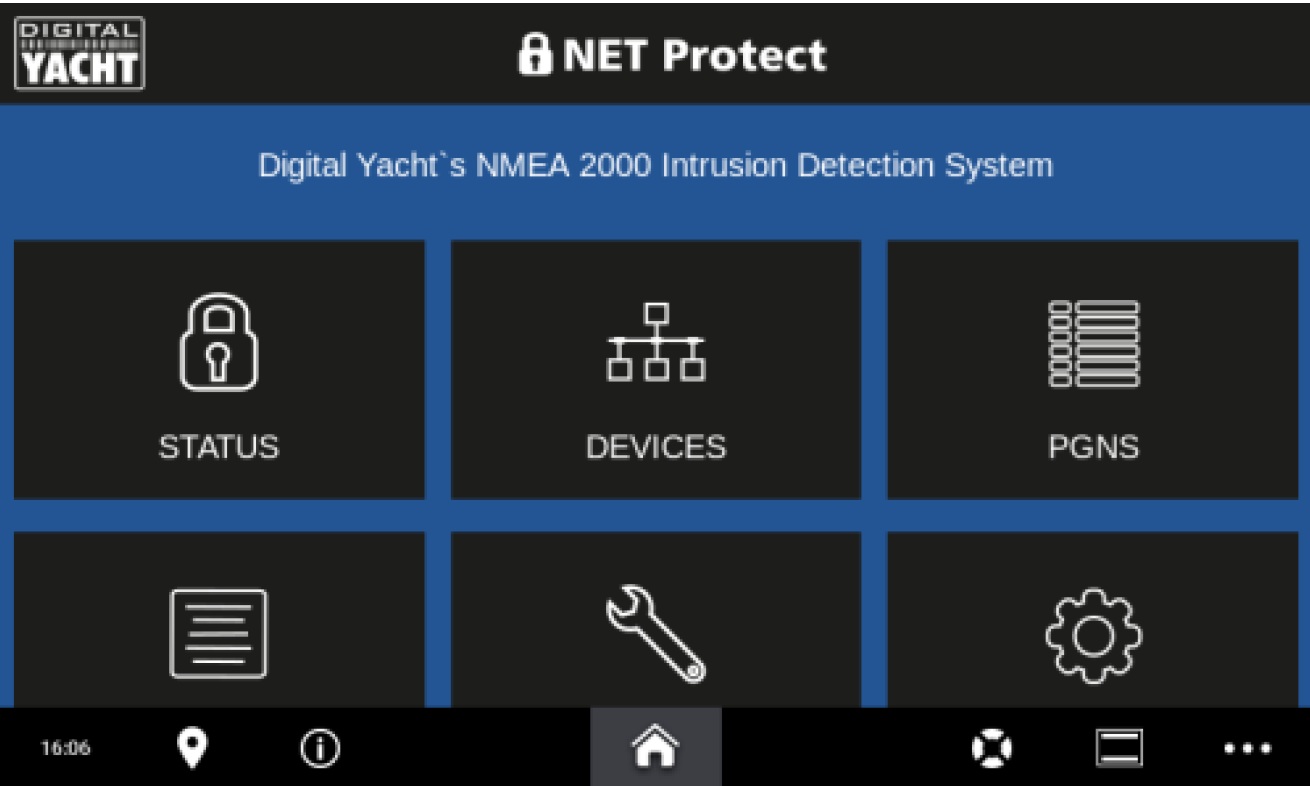
If you wish to connect your NET Protect to a Garmin MFD that supports OneHelm, please ensure you have the latest NET Protect firmware and then follow the instructions below…
By default, Garmin do not enable the wireless interface in their units. If you cannot see a Garmin wireless network when you scan for networks, go to the MFD’s SETTINGS>COMMUNICATIONS>Wi-Fi NETWORK menu and enable the wireless network. You will be prompted to accept or change the default SSID and then to enter a wireless password.
Once this is setup and saved, you should be able to see the Garmin Wi-Fi network when you scan for networks.
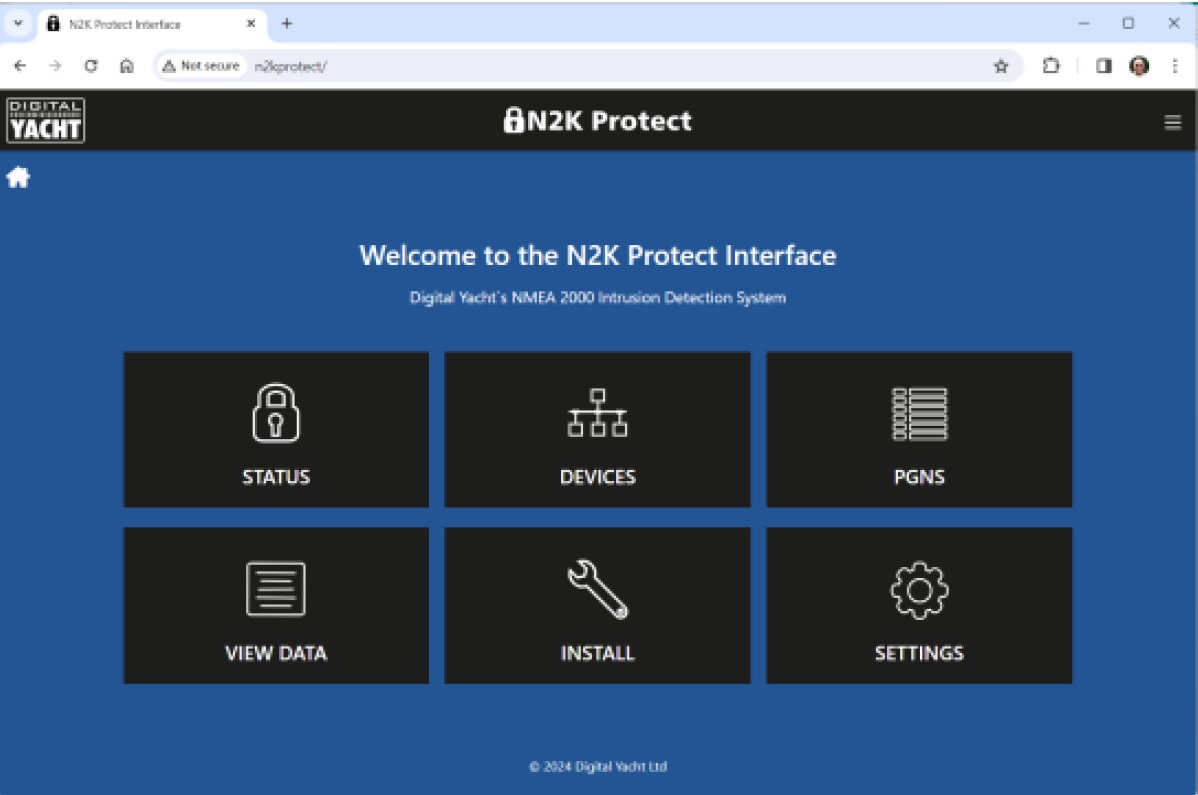
Wirelessly connect your mobile device to NET Protect’s wireless network and using the device’s web browser, bring up the NET Protect web interface.
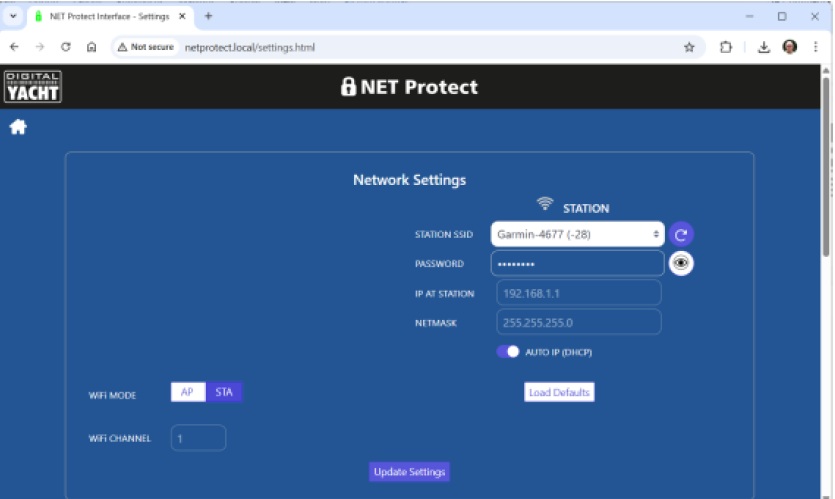
Go to the SETTINGS page, select STATION mode (STA), choose the Garmin wireless network from the drop down list, type in the wireless password and then click the “UPDATE SETTINGS” button ….
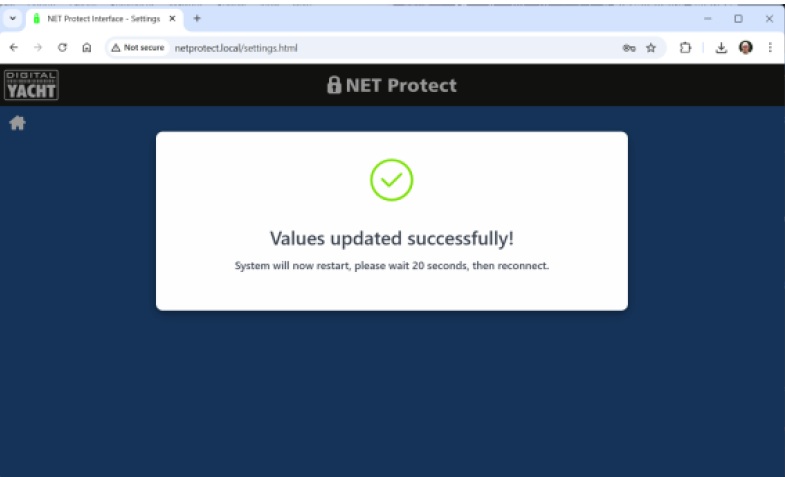
NET Protect should now display the following page and reboot. When it restarts, it will no longer create its own wireless network, but join the Garmin network. If it is successful, the STATUS LED will be permanently ON. If it is still flashing, then factory reset the NET Protect and repeat the process again, paying particular attention to enter the wireless password correctly.
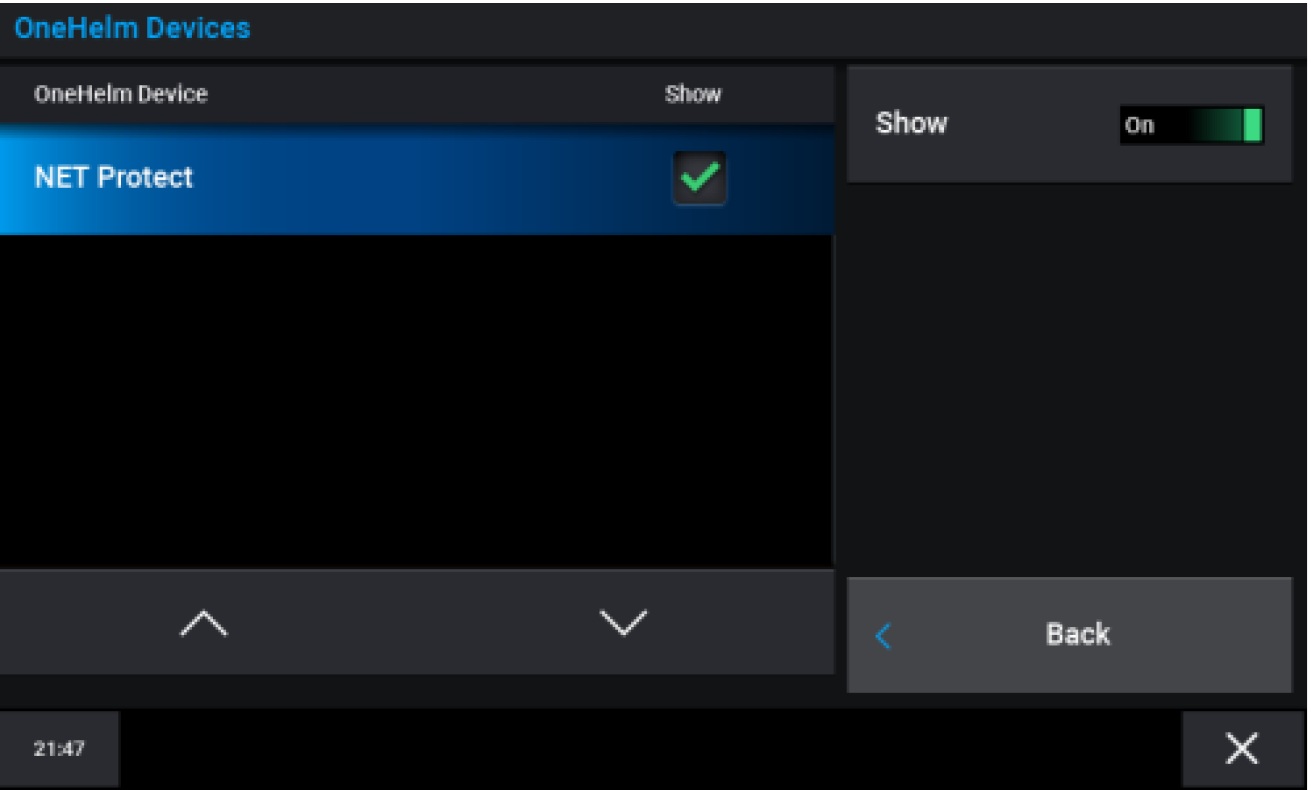
The Garmin MFD should auto-discover the NET Protect and list it in the OneHelm Devices, SETTINGS>COMMUNICATIONS>ONEHELM DEVICES page…
Also you will see the NET Protect icon in the HOME>VESSEL page …
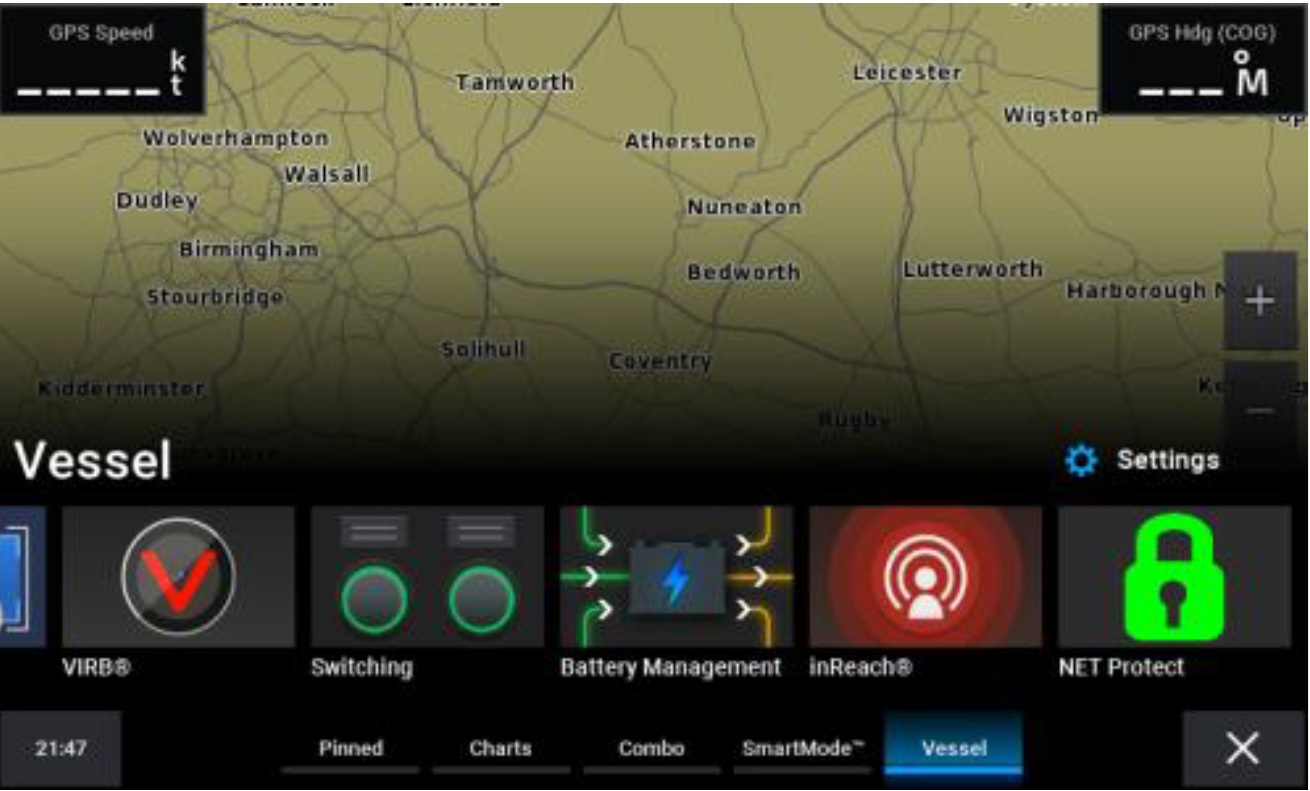
Click on this icon to access and operate the NET Protect web interface…