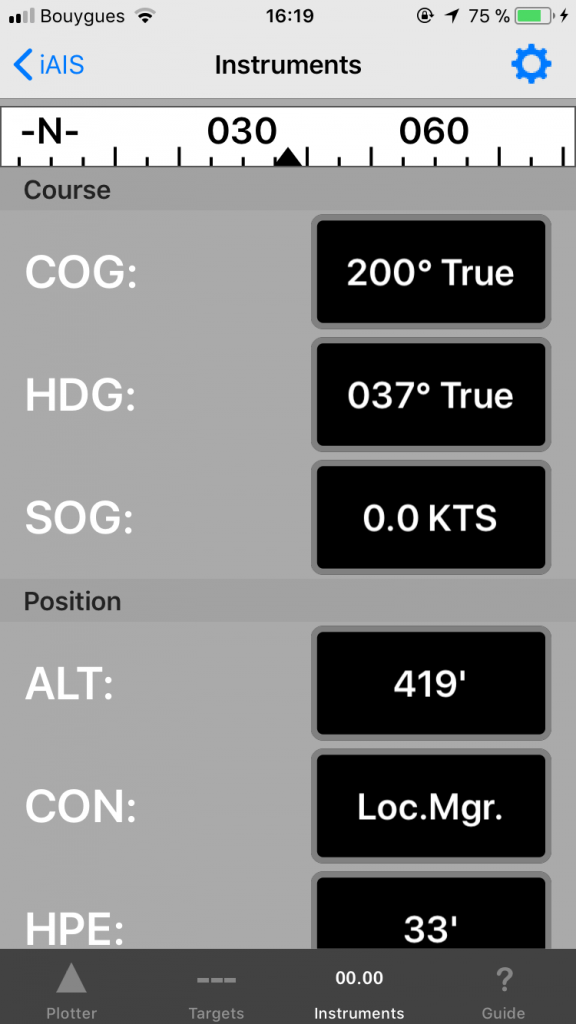
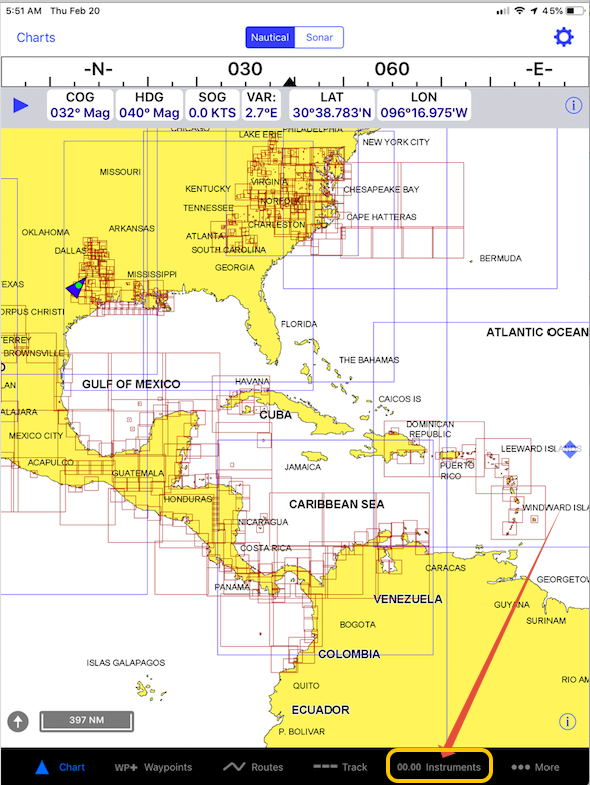
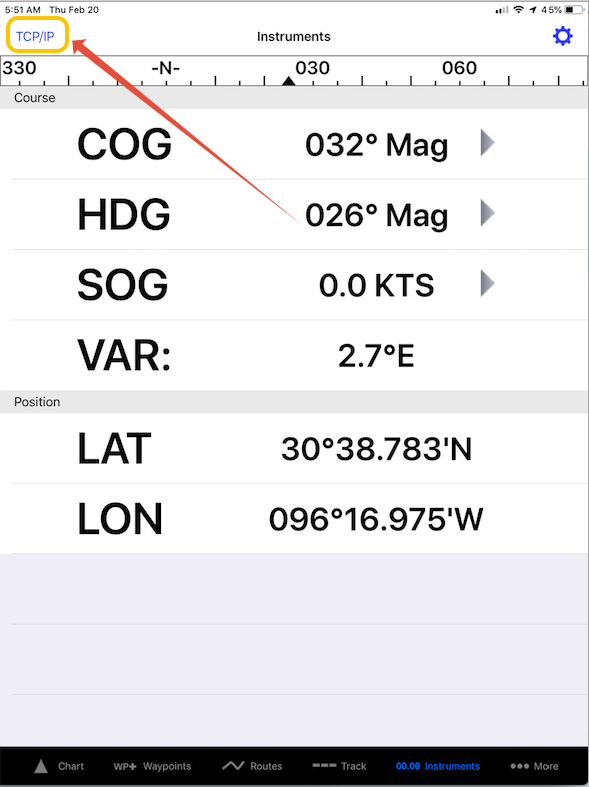
Aqua Map Marine is an iOS/Android app. To receive external NMEA and AIS data, you need to purchase the Master functions.
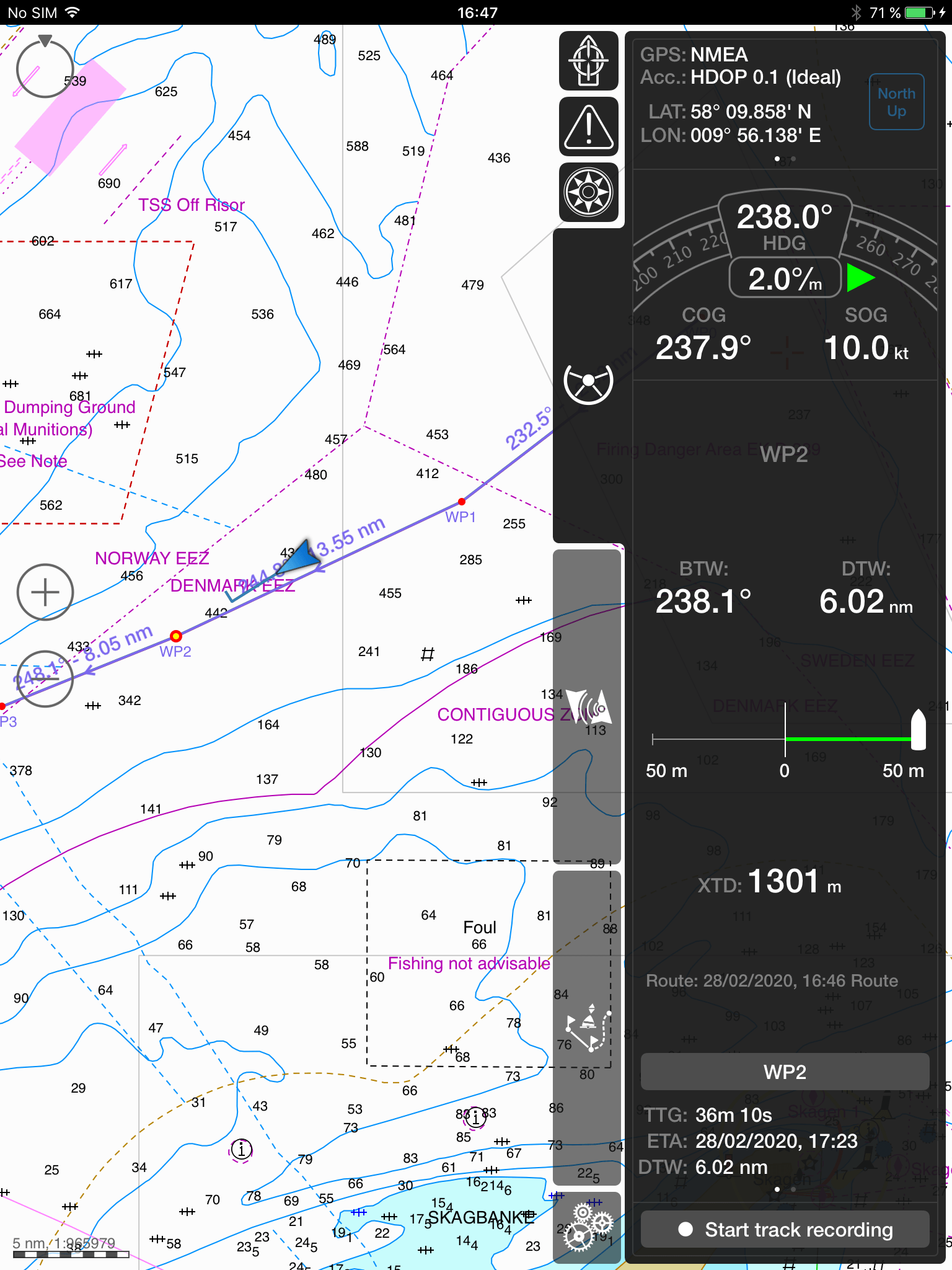
Once you have connected your tablet or smartphone to the WiFi of the NMEA to WiFi server or the AIS transponder/receiver, open the app. Aqua Map can receive all NMEA 0183 data such as GPS, AIS and instrument data. Aqua Map is also Signal K compatible and can receive Signal K data from our iKommunicate.
1. Set up an NMEA connection
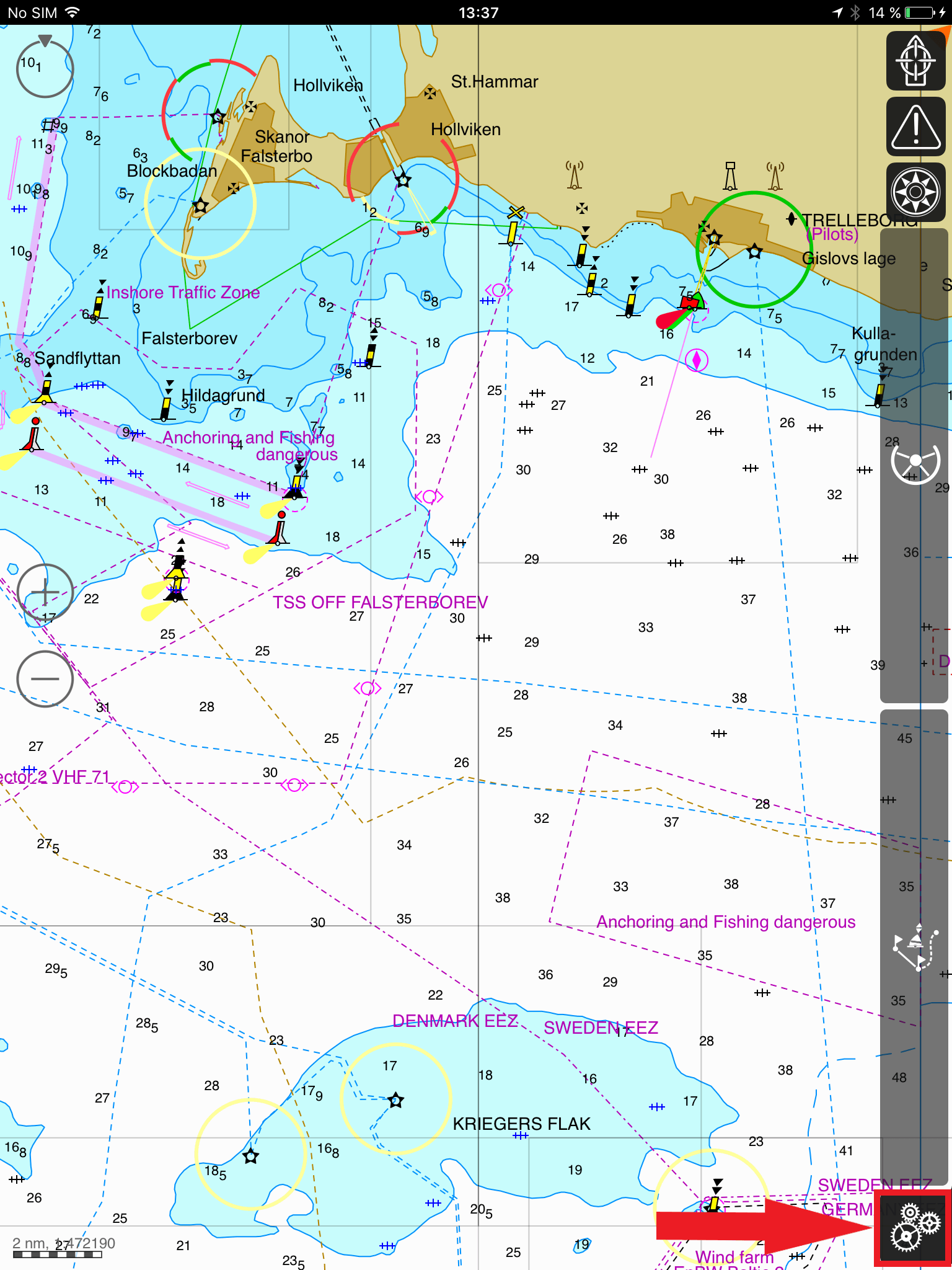
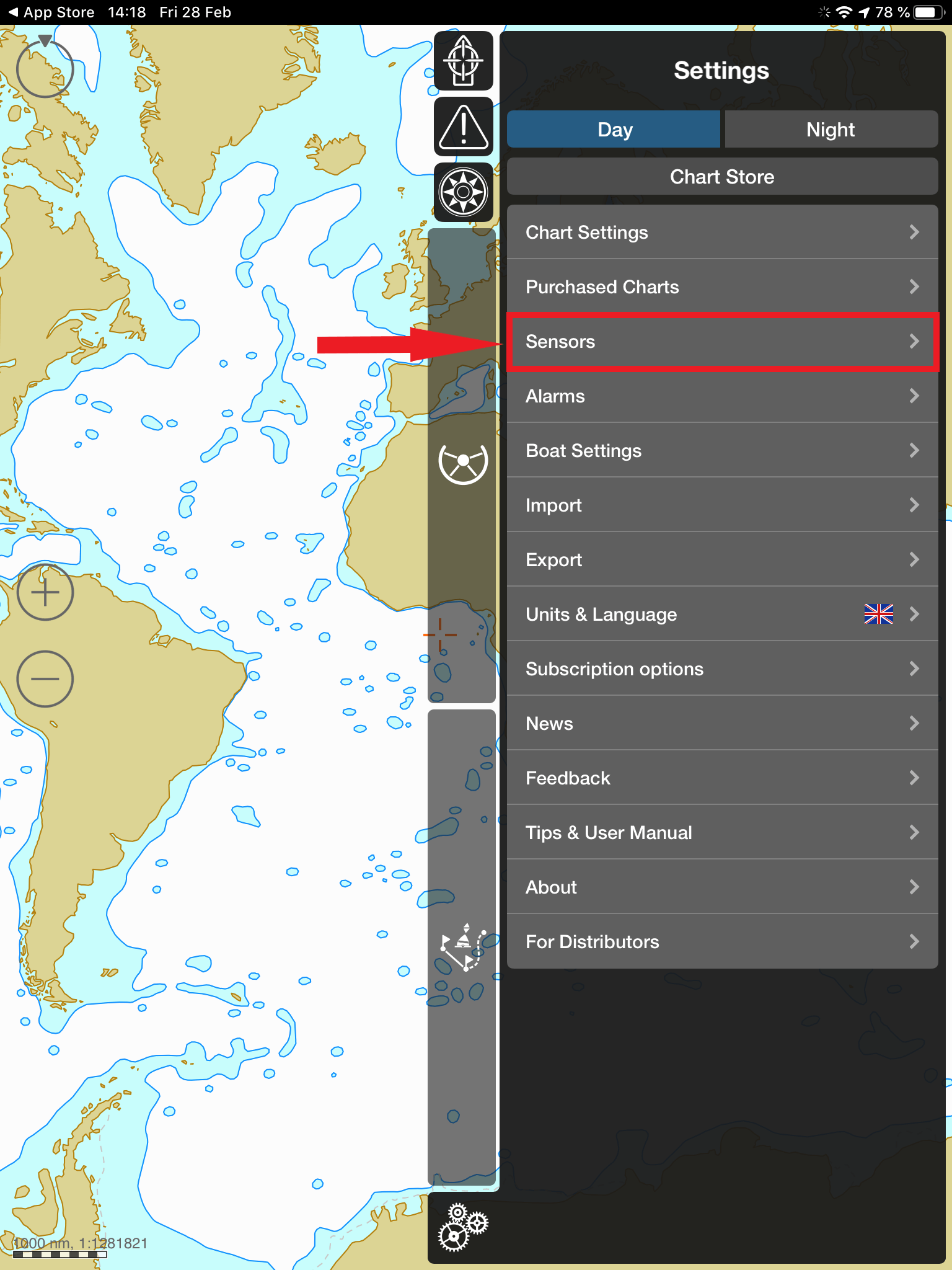
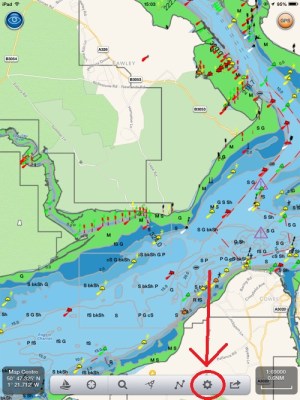
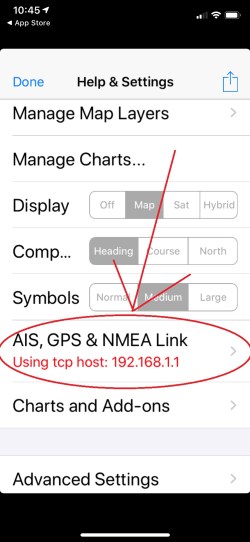
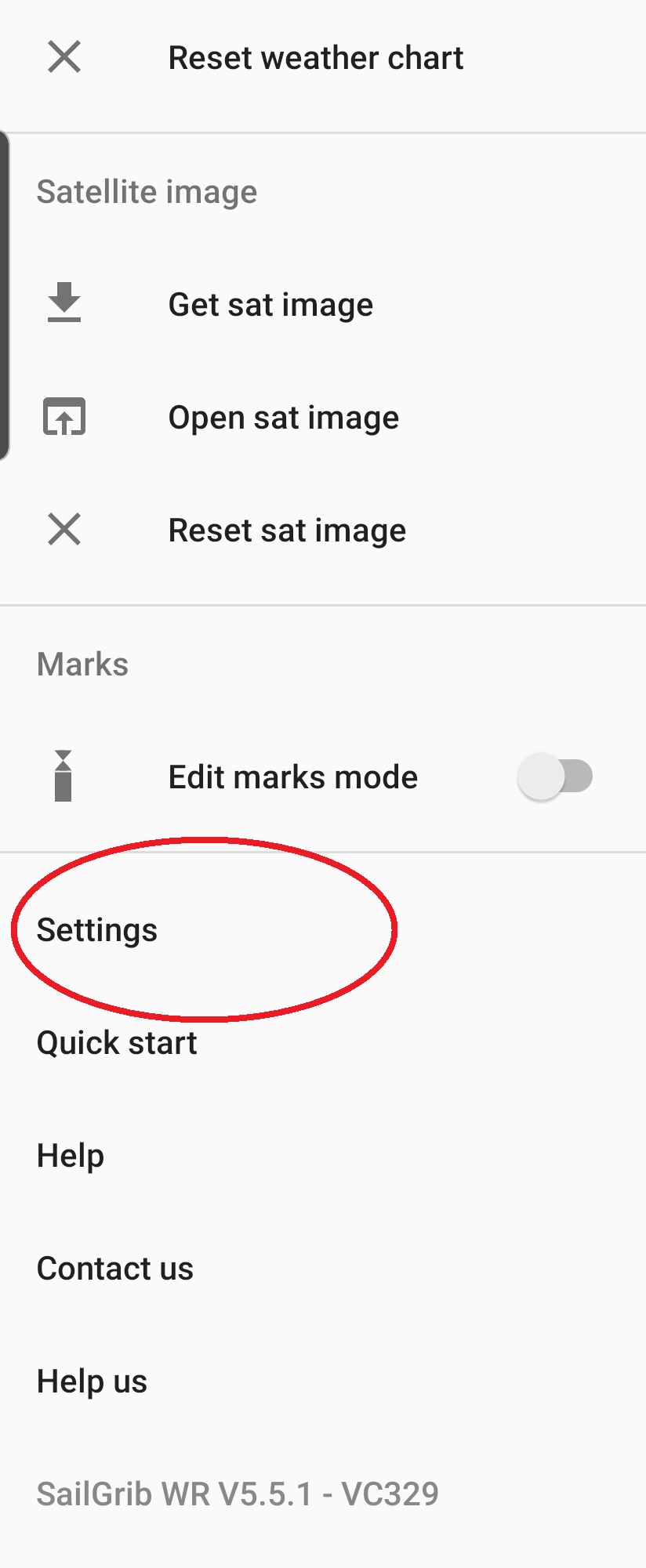
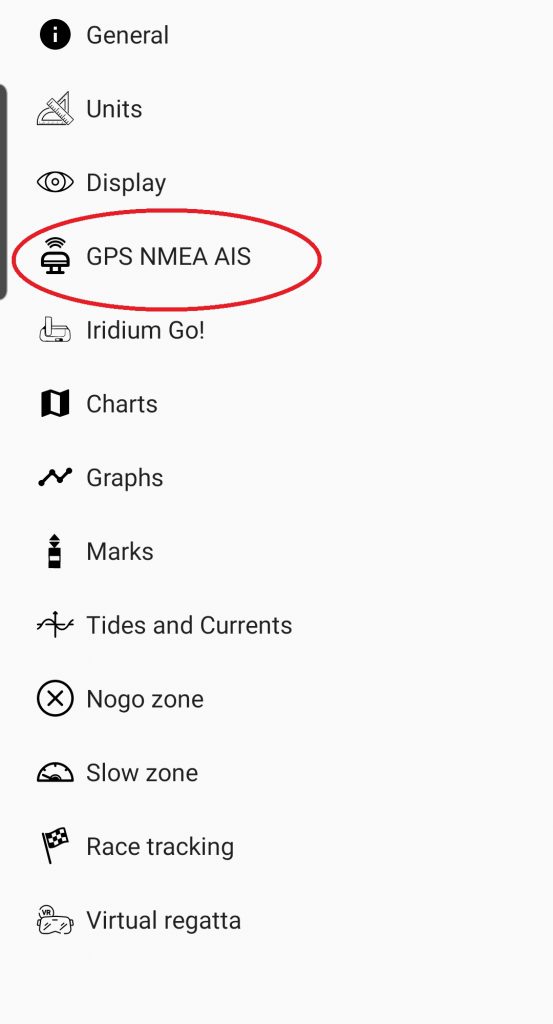
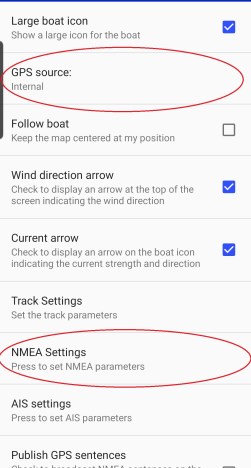
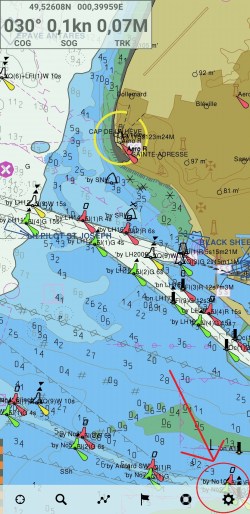
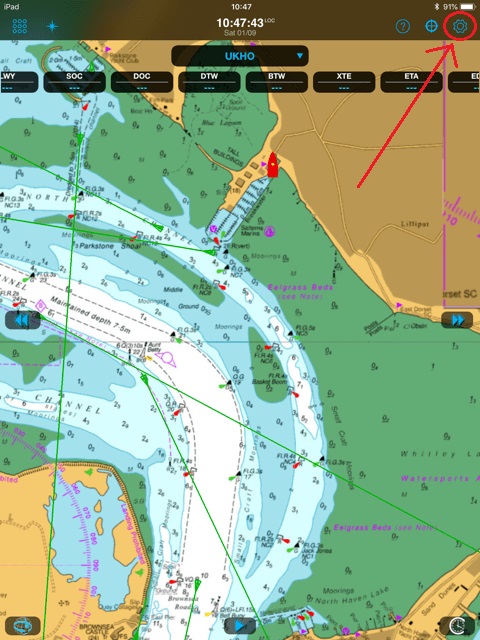
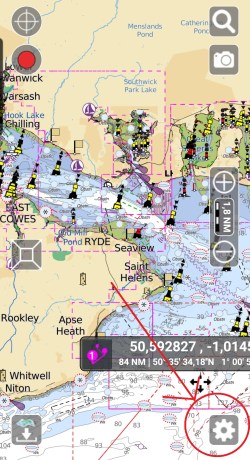
Go to the Settings.
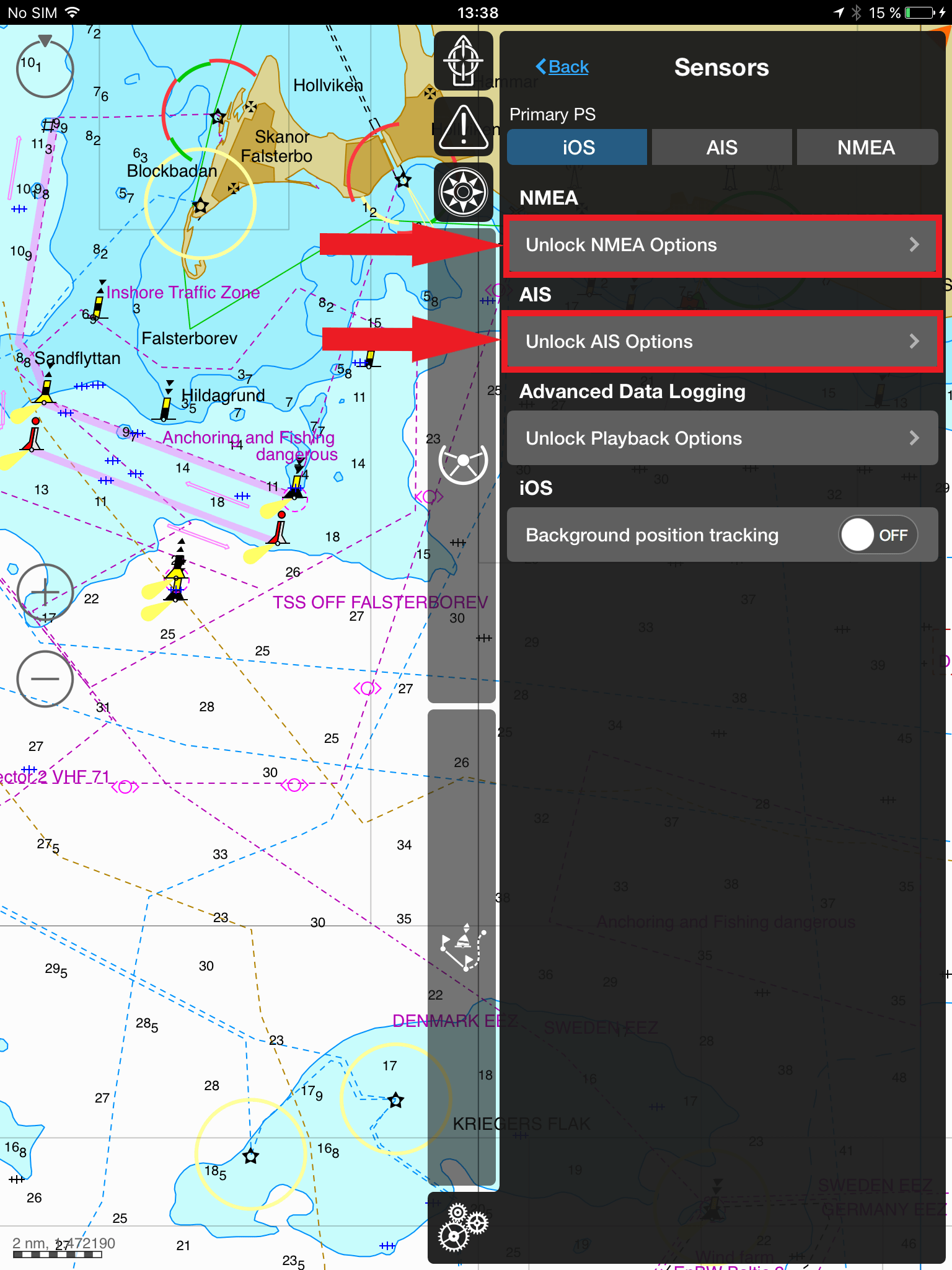
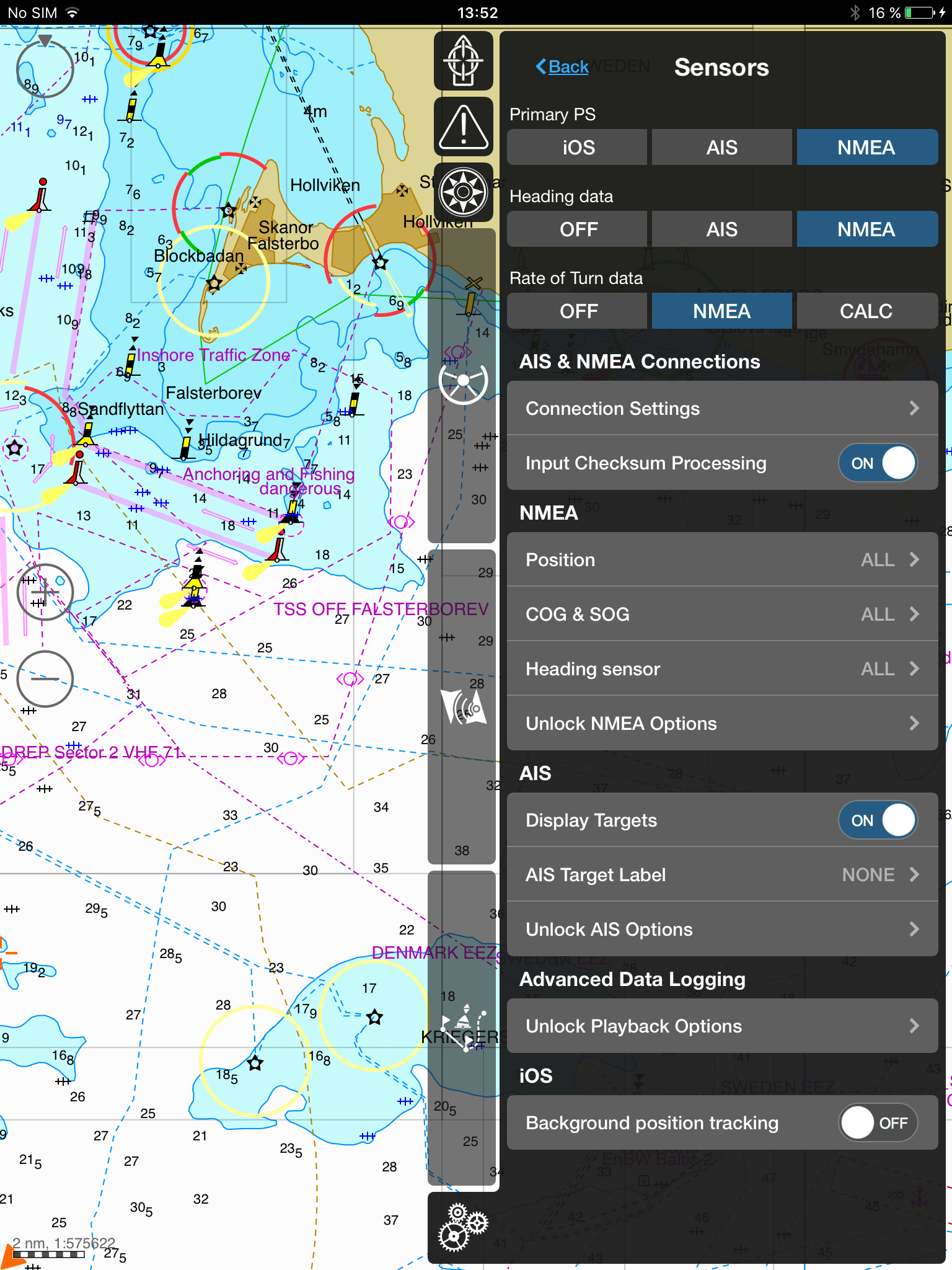
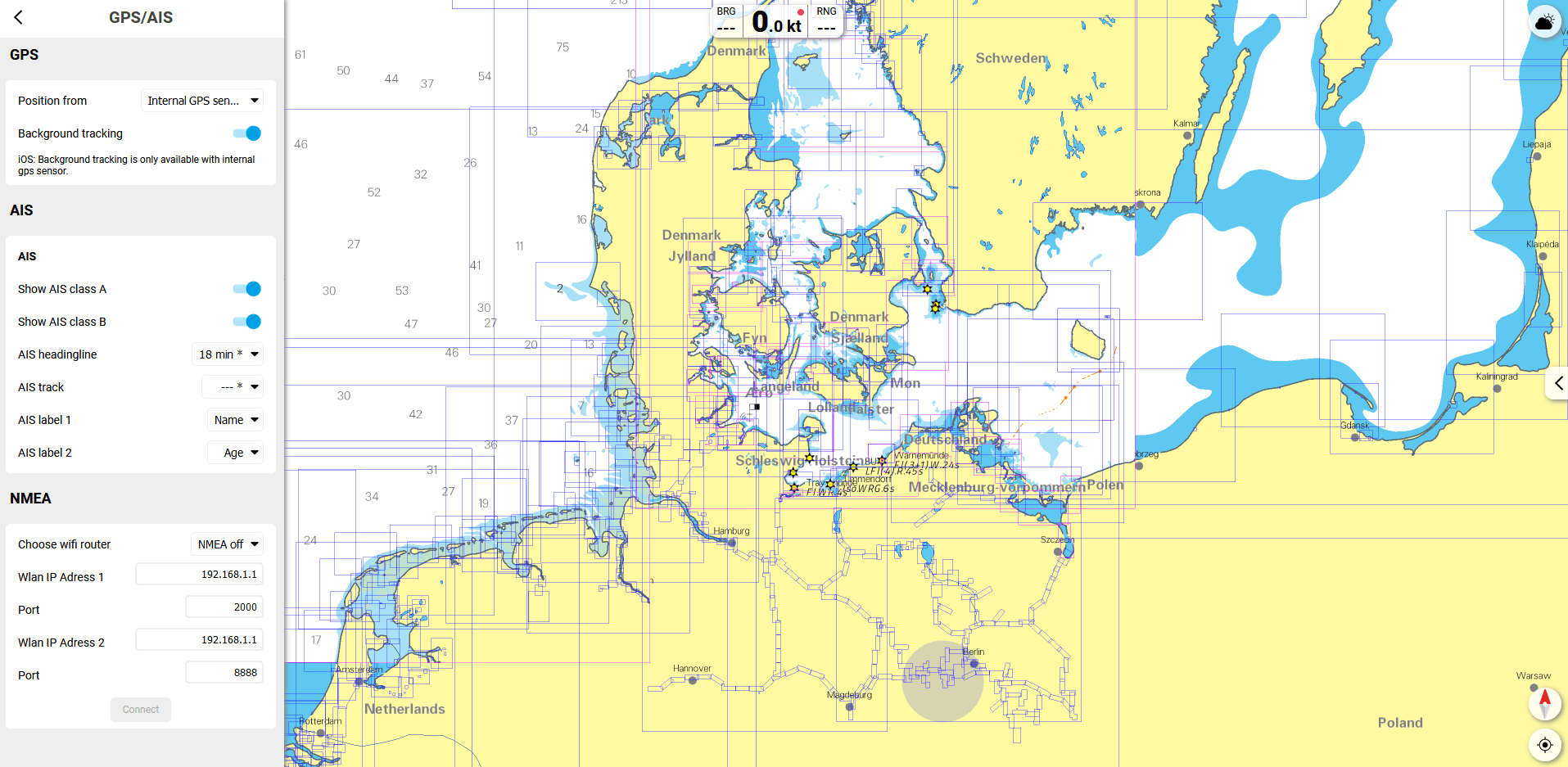
Toggle the buttons next to AIS and NMEA.
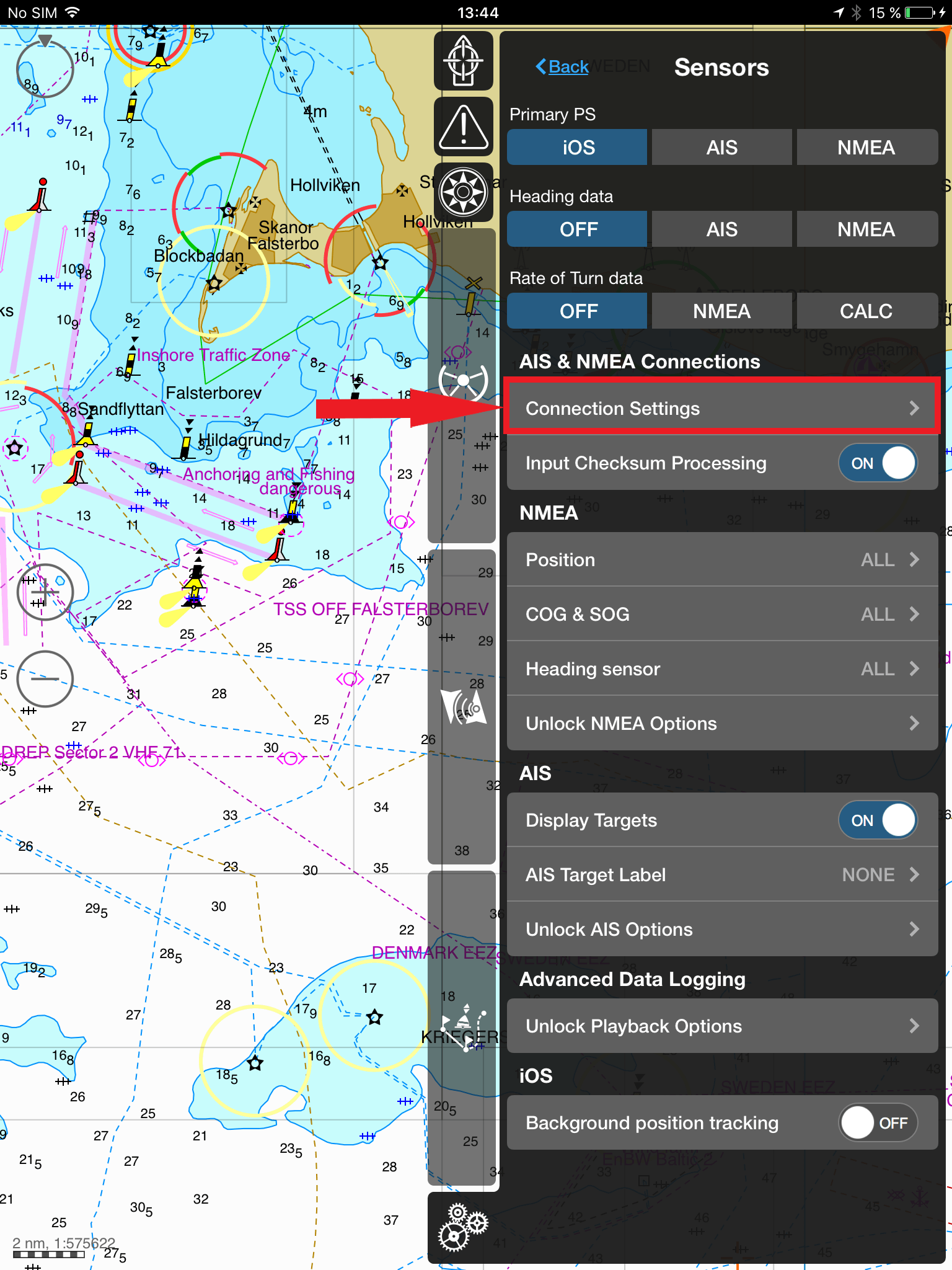
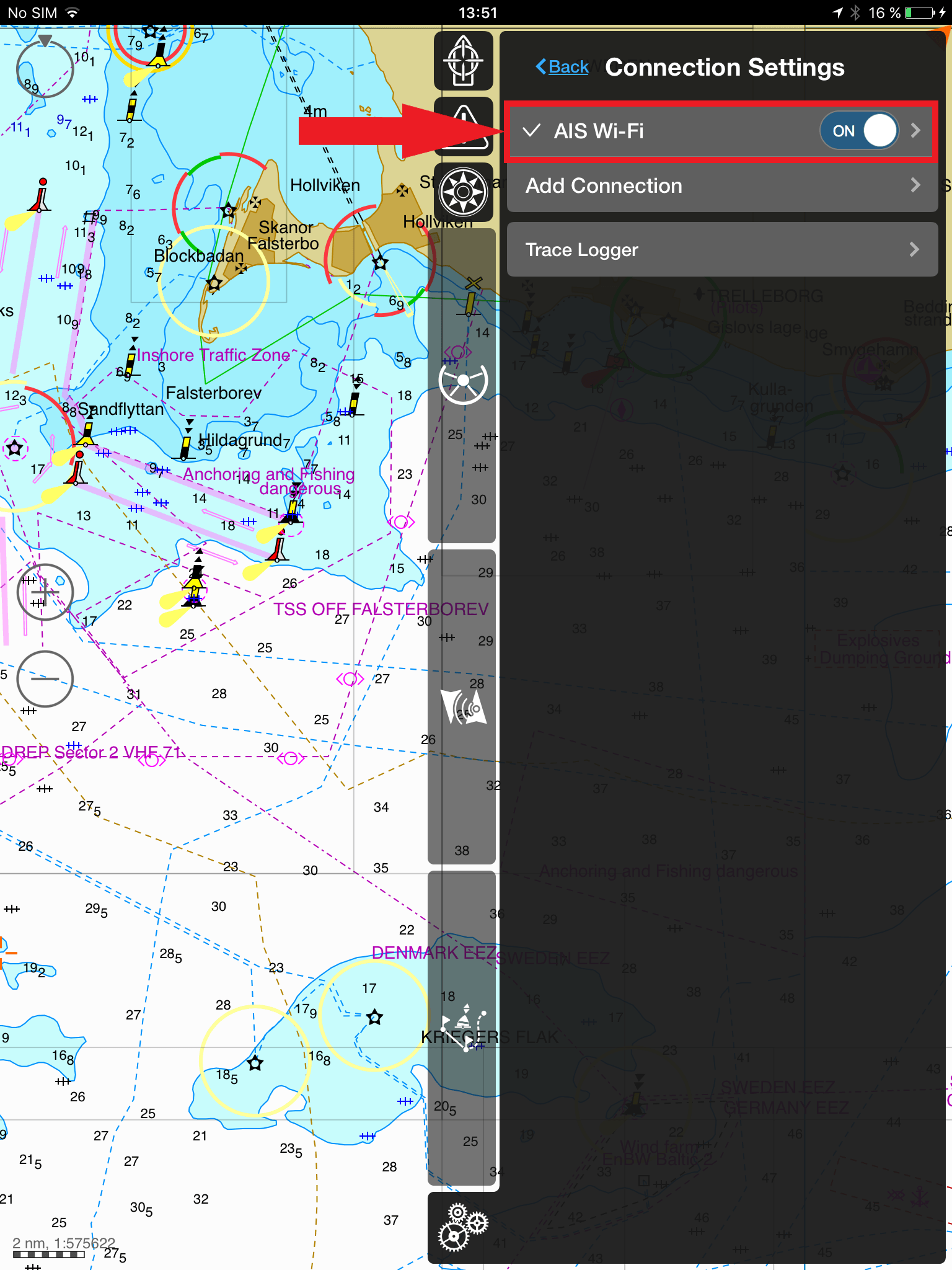
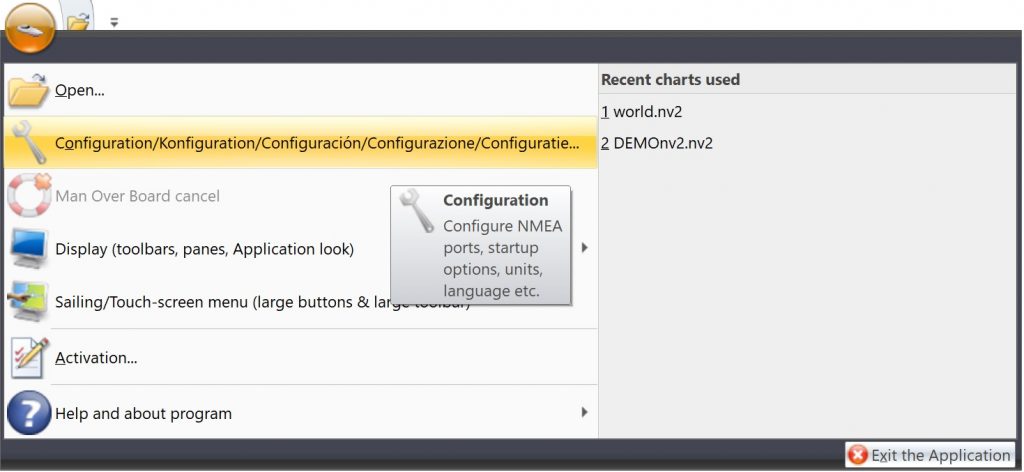
Make sure your Aqua Map Master subscription is active, then click on the arrow next to WiFi Connections.
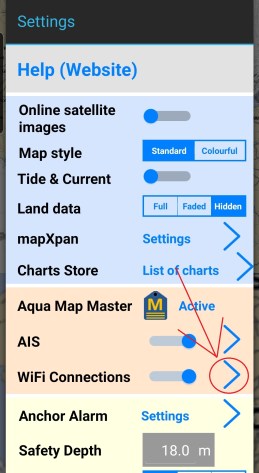
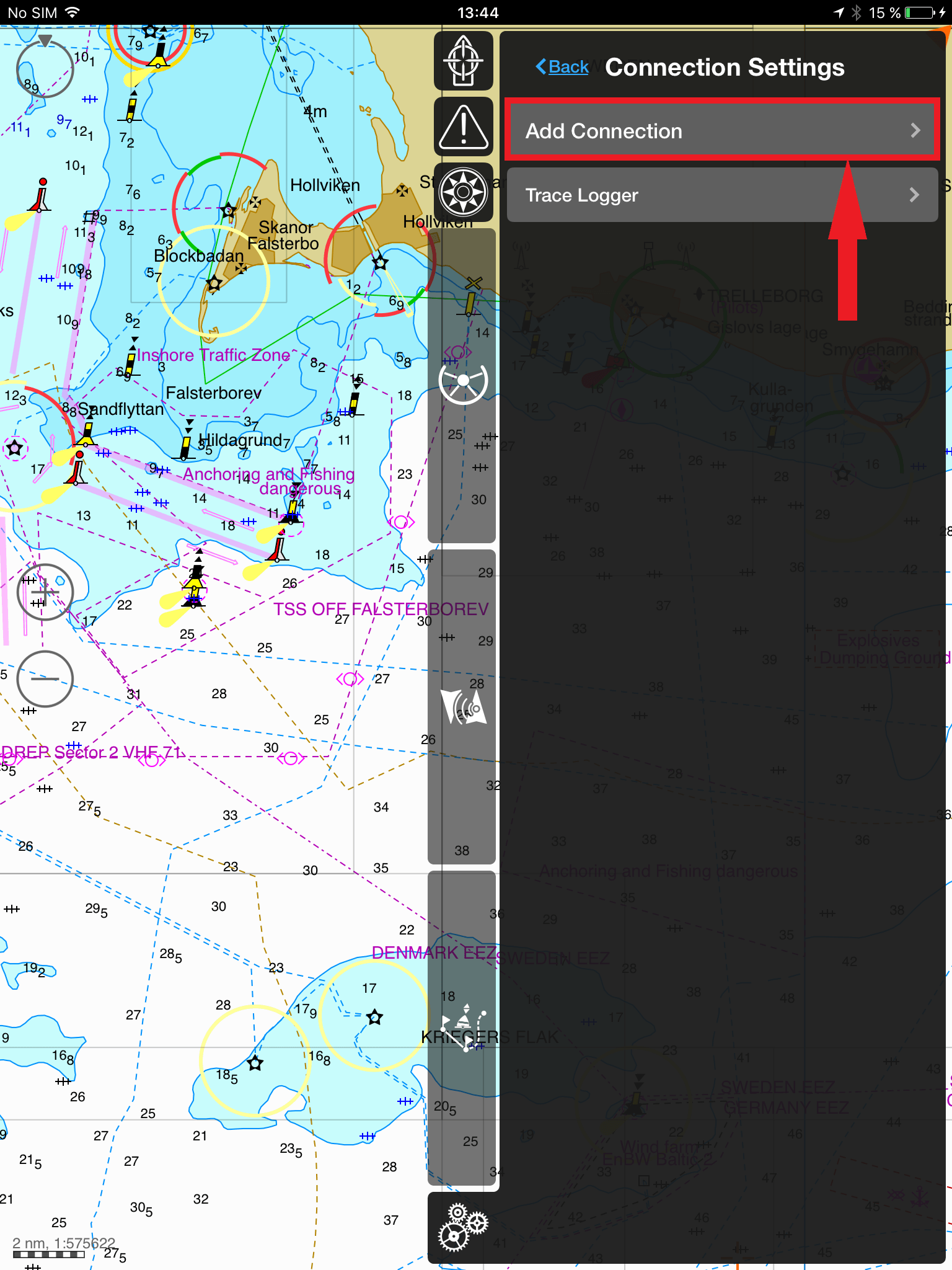
Click on ‘+’ next to List of Connections.
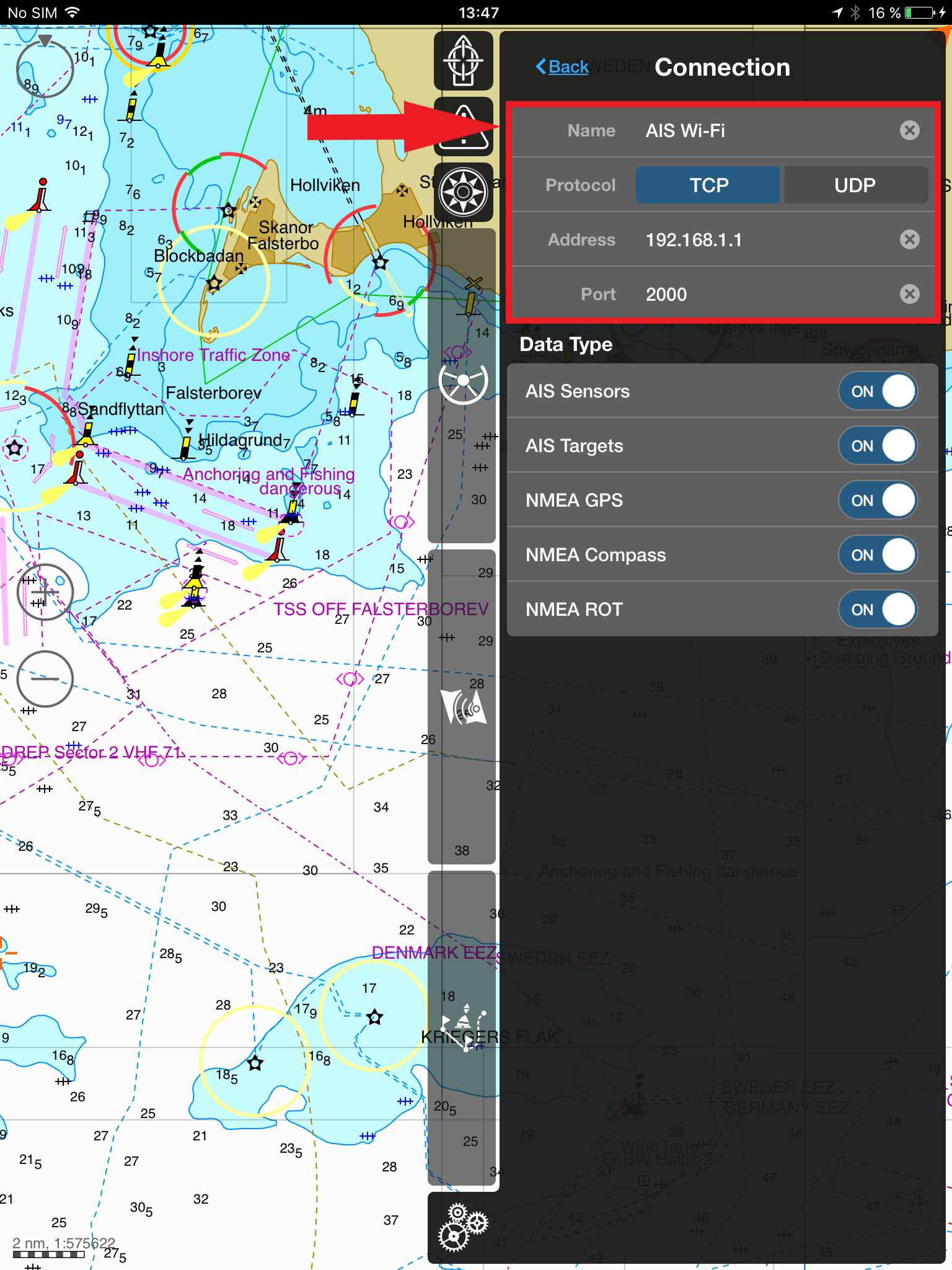
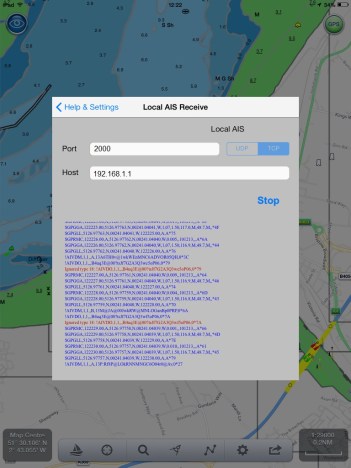
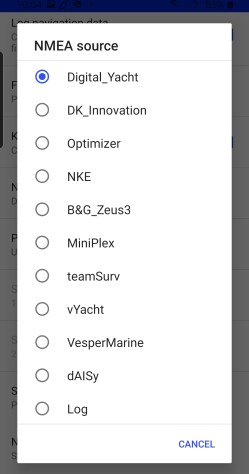
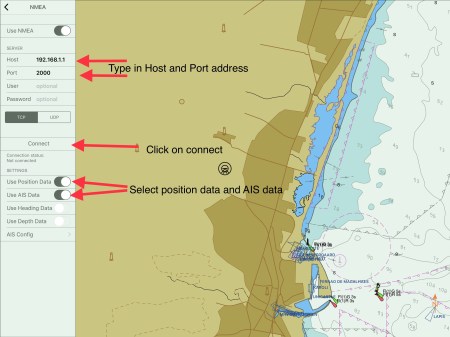
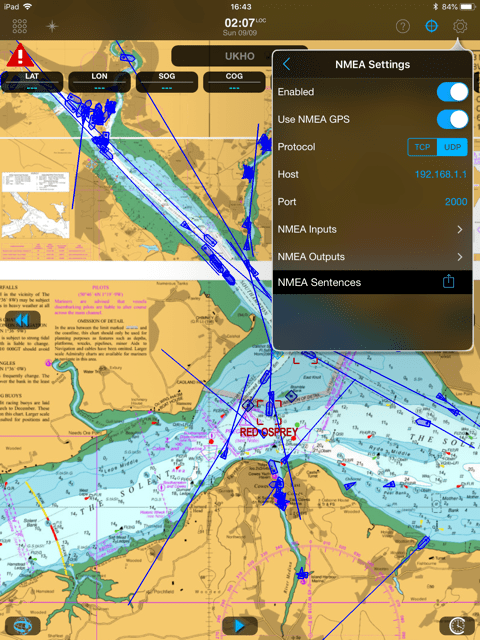
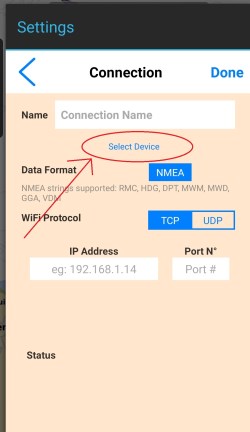
Then, on the next page, you can fill in the parameters to set up an NMEA connection. However, our products’ parameters have already been saved by the app. So, simply click on the button Select device and select Digital Yacht.
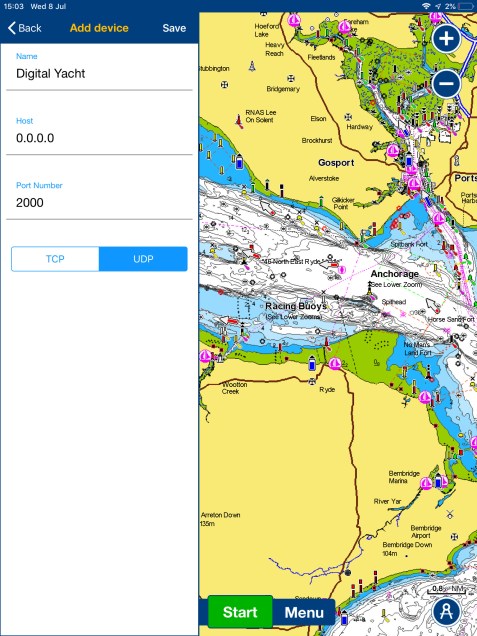
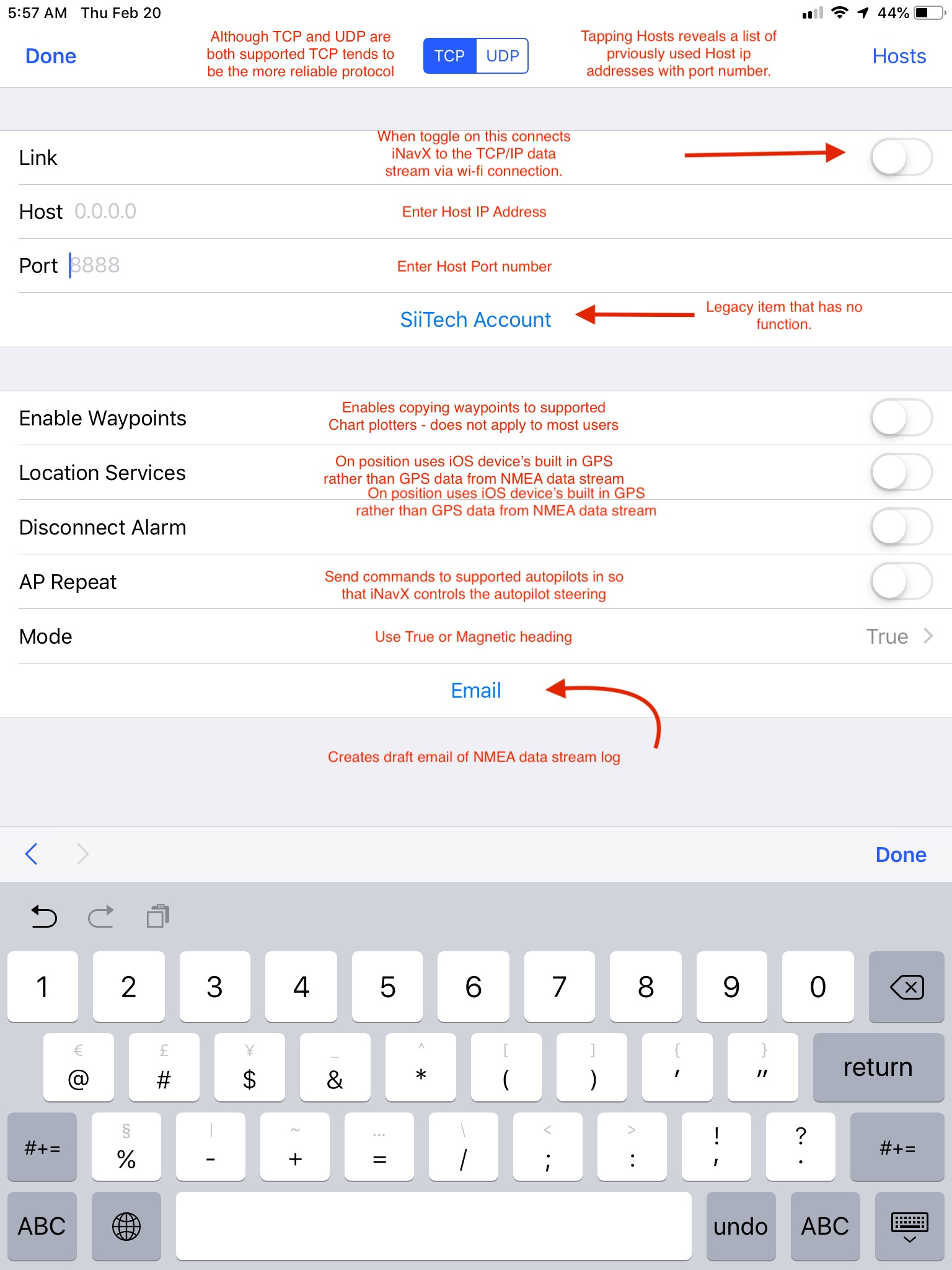
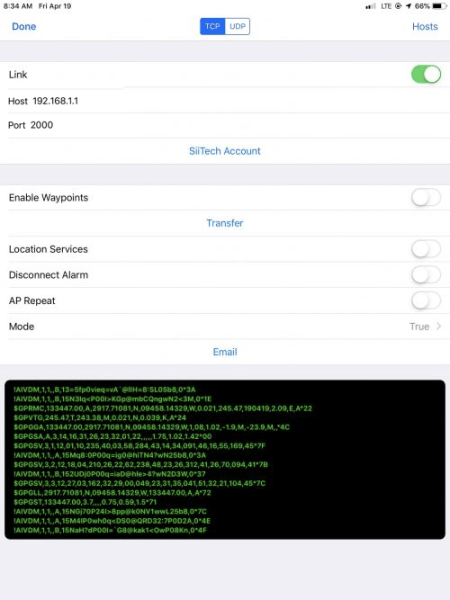
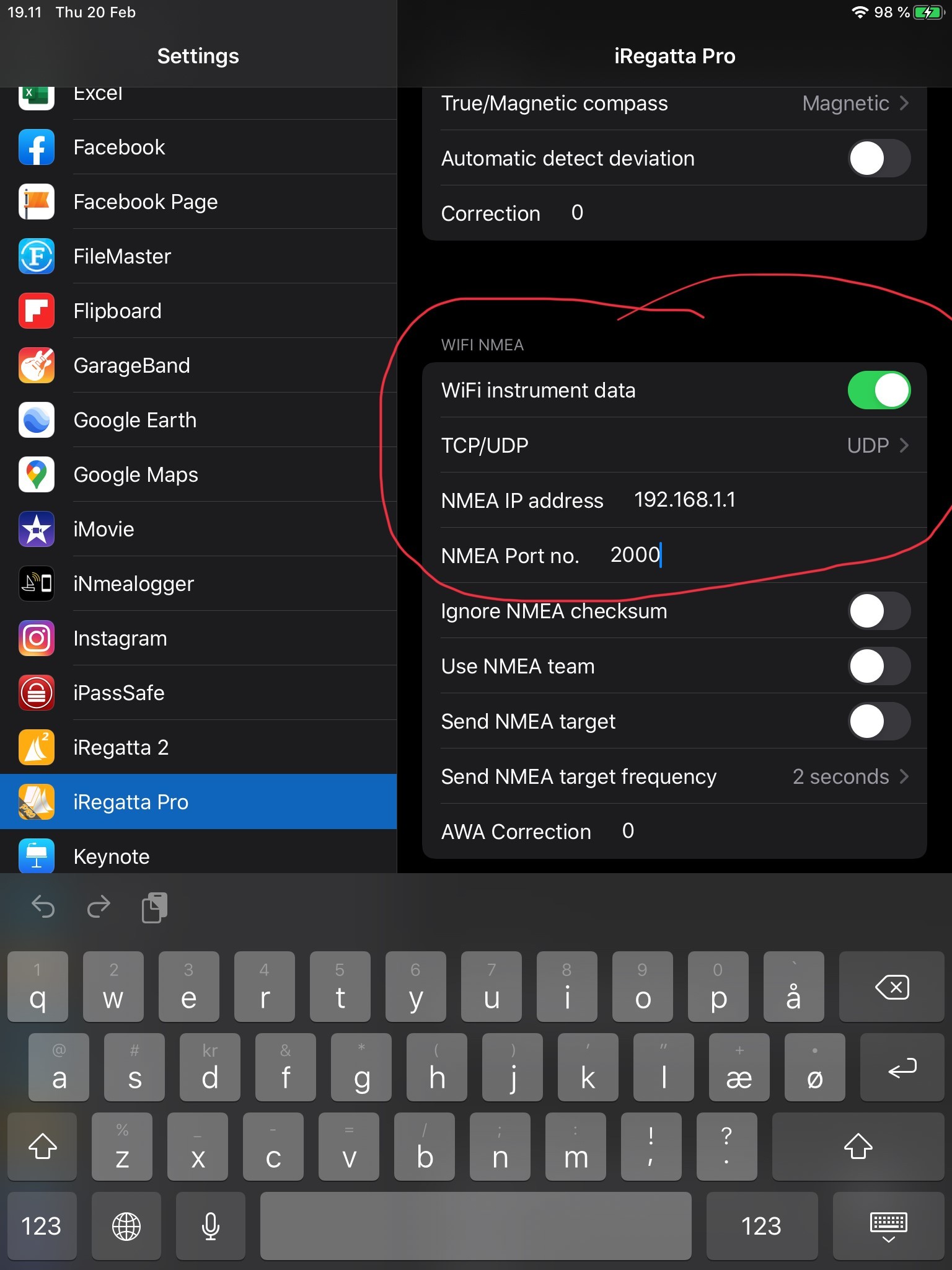
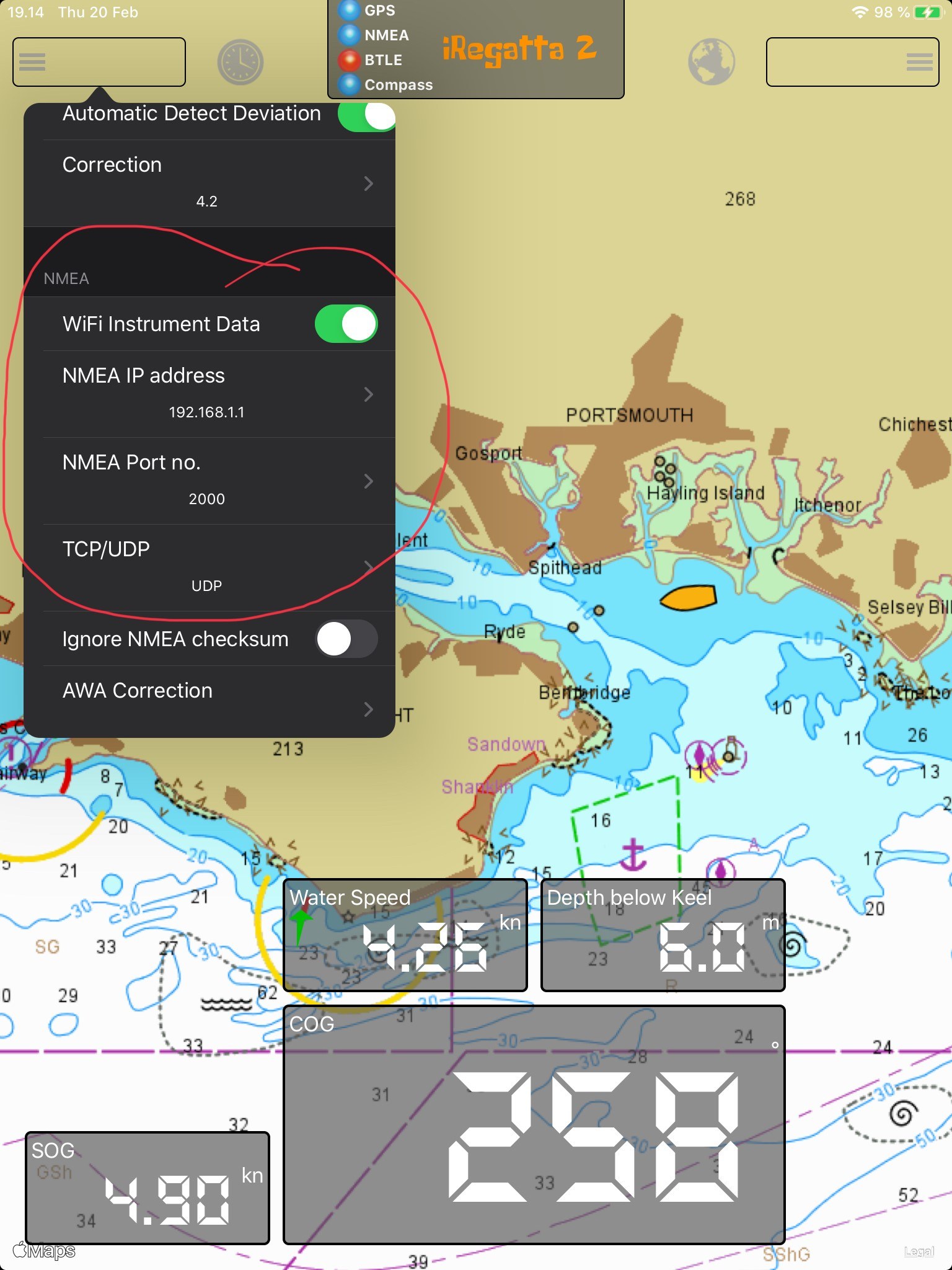
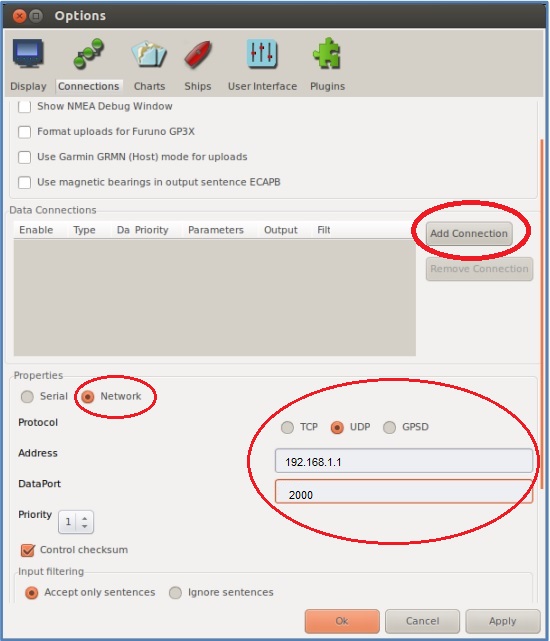
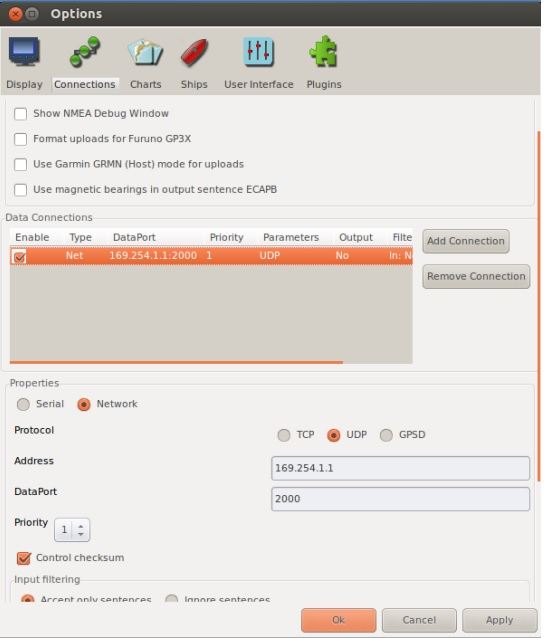
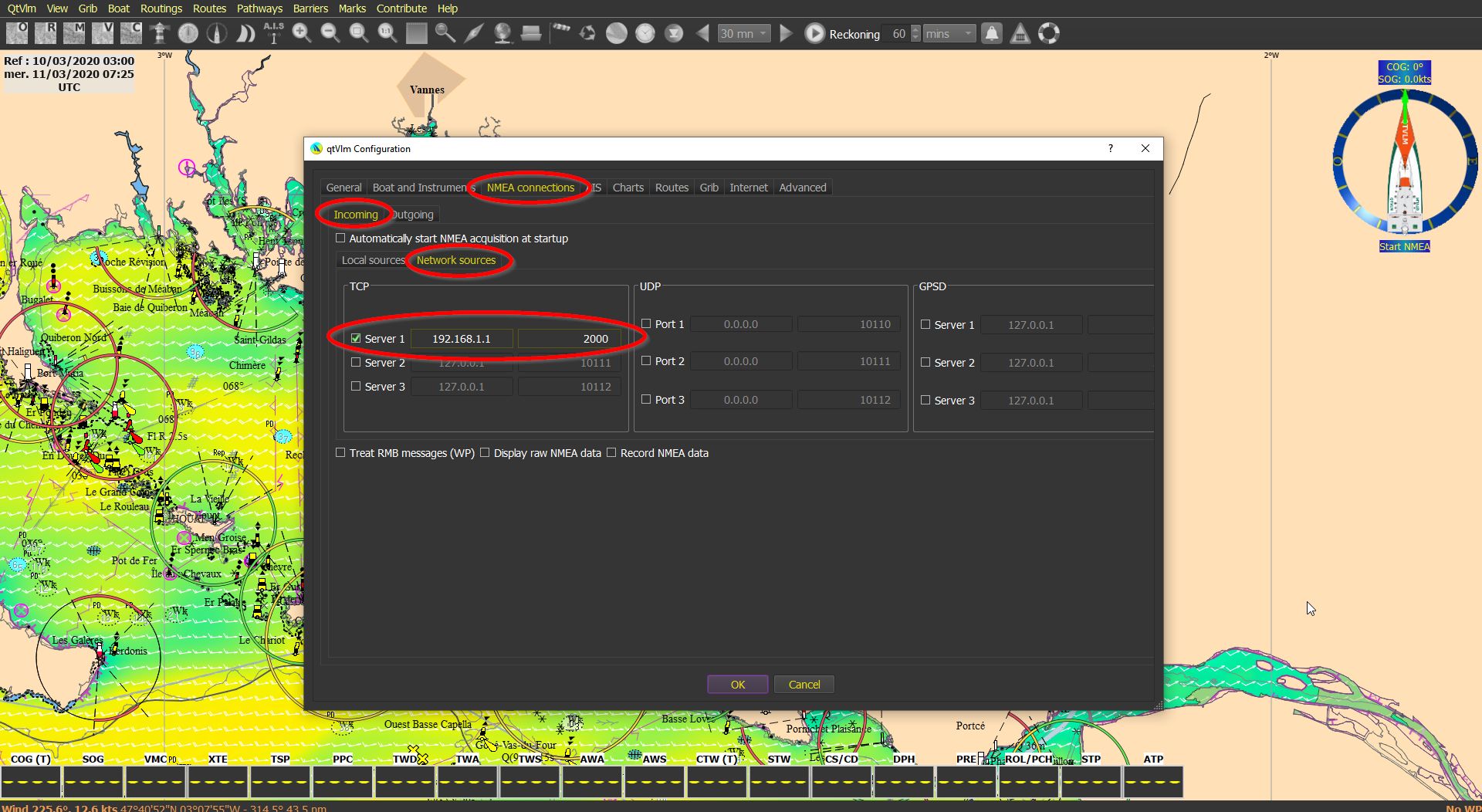
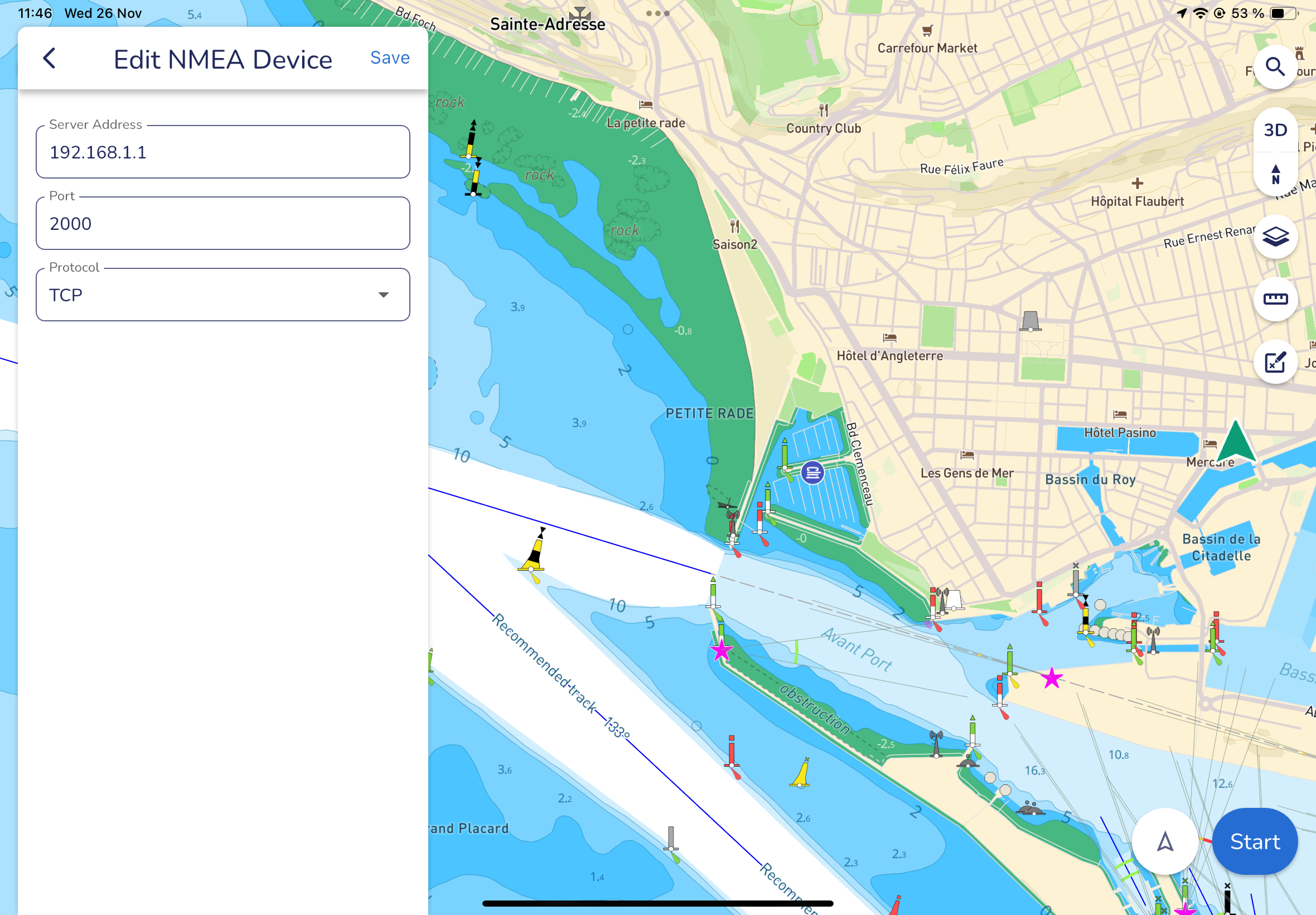
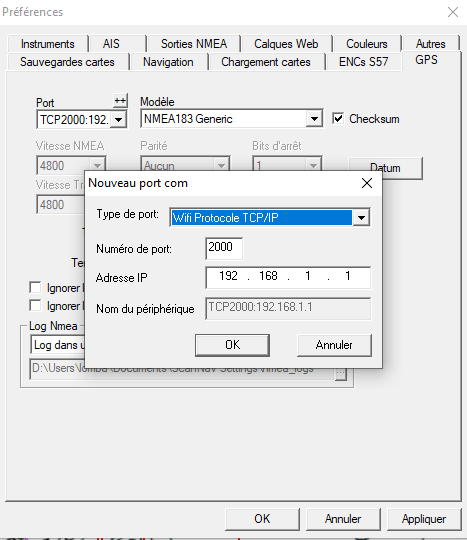
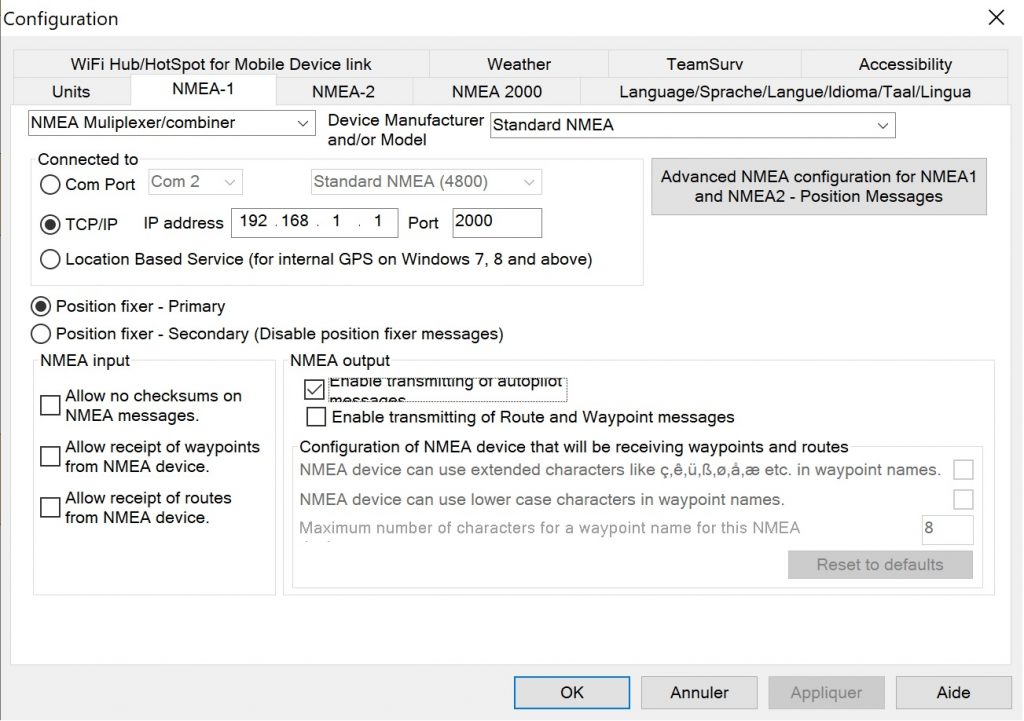
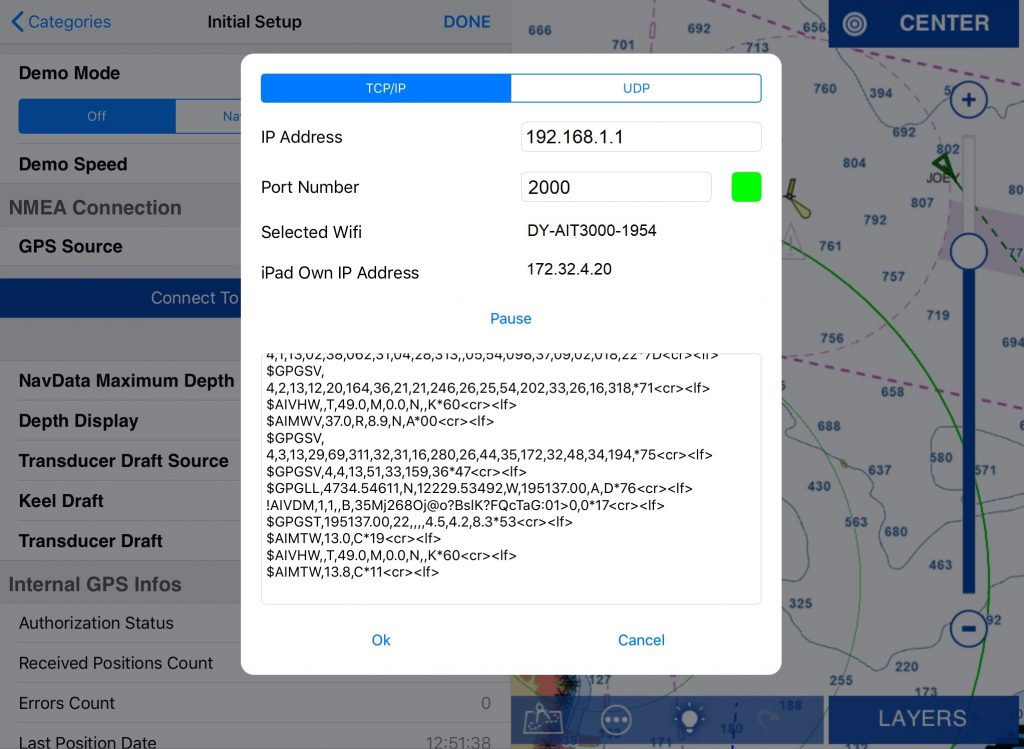
Otherwise, you would have needed to add the Connection name, the protocol TCP or UDP, the IP address: 192.168.1.1, and the port no. 2000.
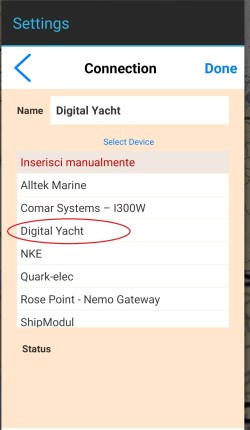
Choose Digital Yacht and click on Done.
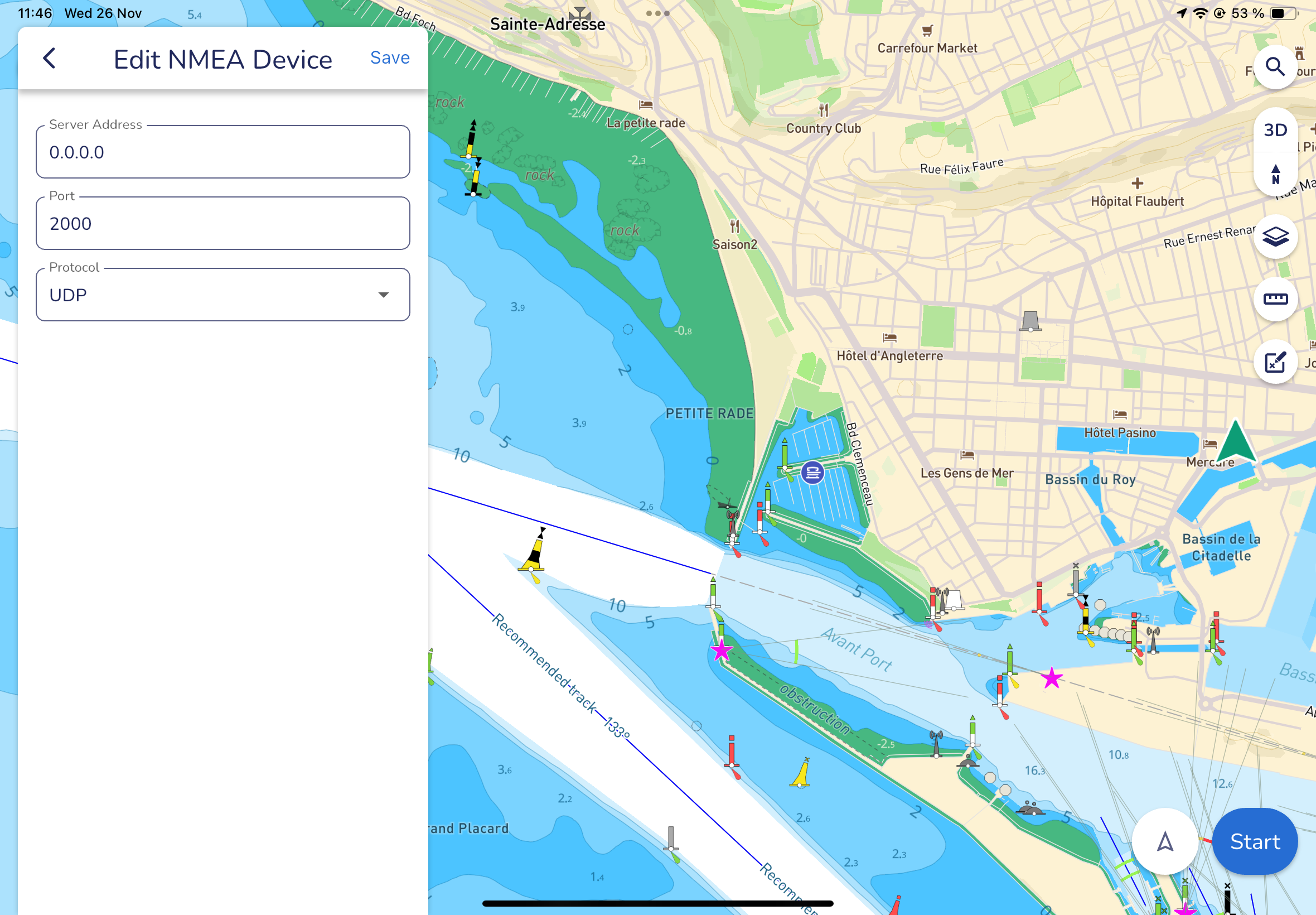
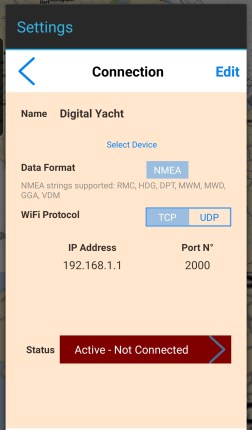
Your parameters will now be saved and if you click on Edit, you can choose if you prefer the app to use an UDP protocol. By choosing UDP over TCP, you can connect up to 7 devices on the WiFi whereas only one connection can be made with the TCP protocol but TCP is more reliable.
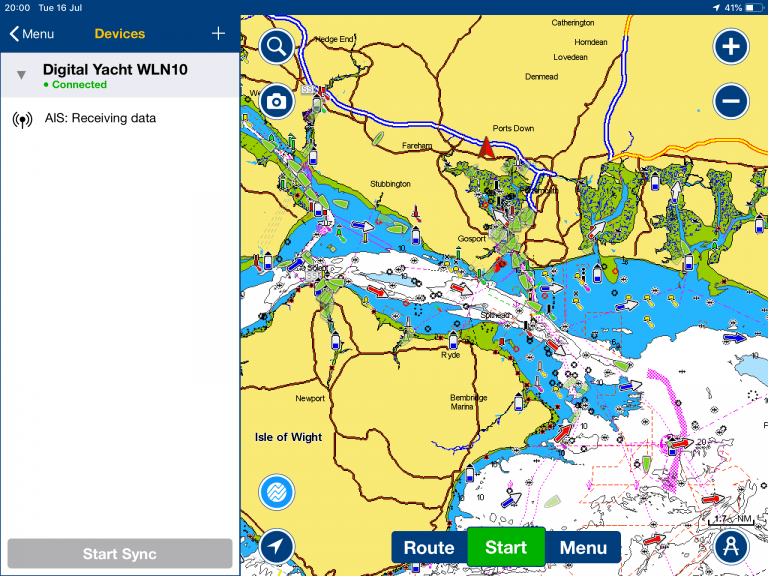
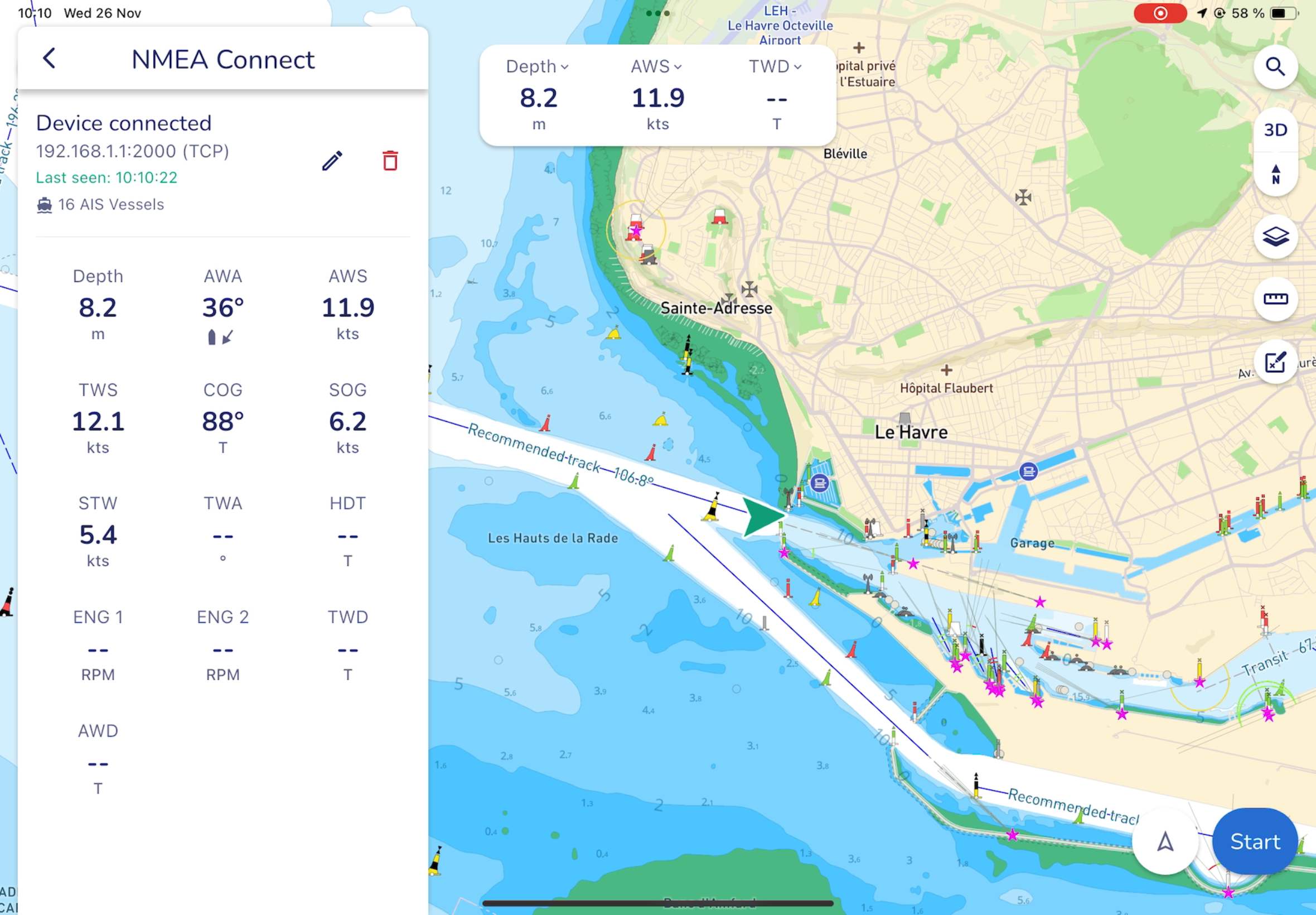
Next to Status, you can see if the app is receiving data or not. If the status is Connected and the connection is completed, a list of the available sensors will be displayed, and you will be able to define which to use with your Aqua Map.
Go back to the main menu by clicking on the arrow in the top left corner.
Your NMEA connection is now set up.
2. Configure AIS parameters
After having configured the NMEA connection, you can now configure all the AIS parameters.
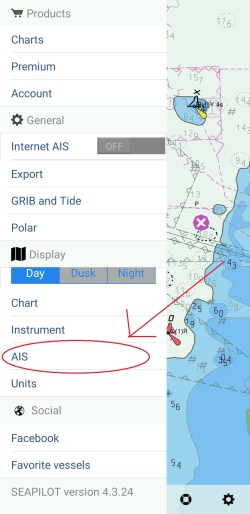
Go to the main menu and click on the arrow next to AIS.
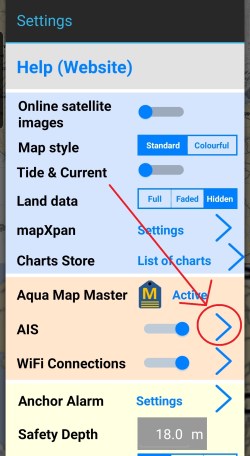
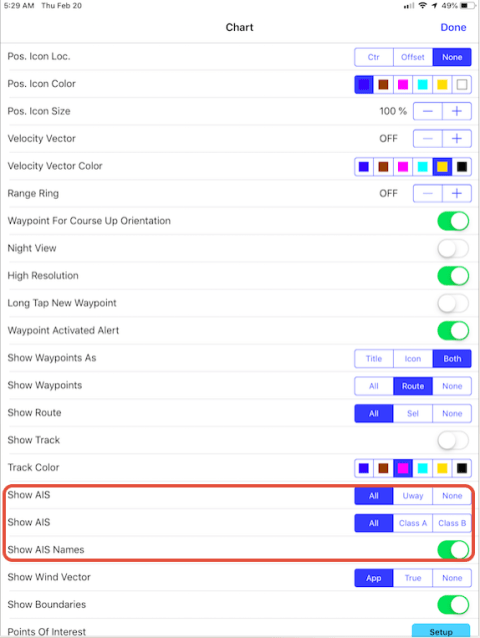
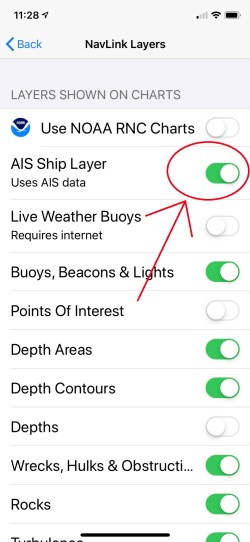
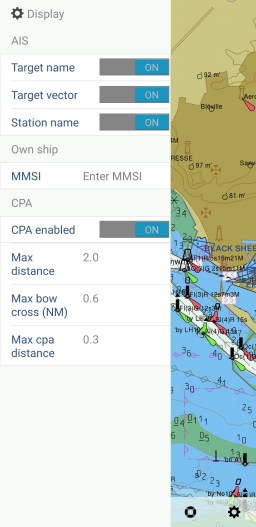
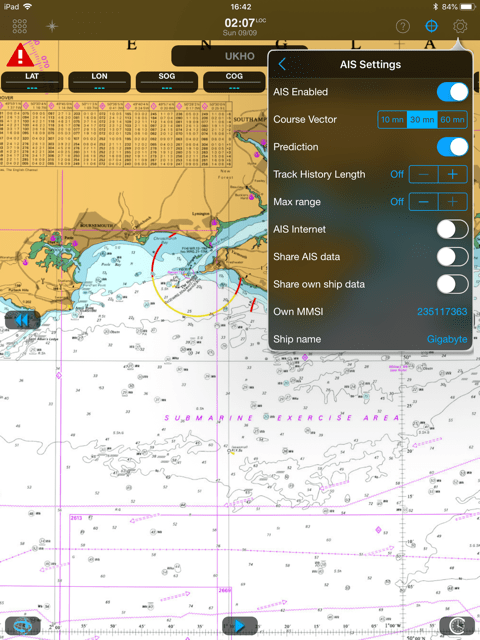
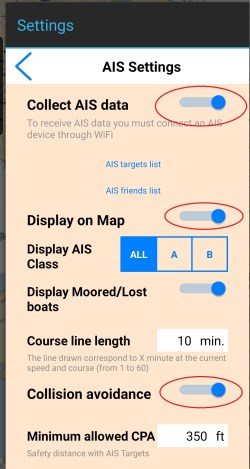
In that page, toggle the buttons next to Collect AIS Data, Display on Map and if you want Display Moored/Lost boats. You can also choose to only display both or Class A (commercial) or Class B (leisure) AIS targets.
Under Collect AIS data, you can display a list of AIS targets and you can order AIS targets by CPA, distance and by name.
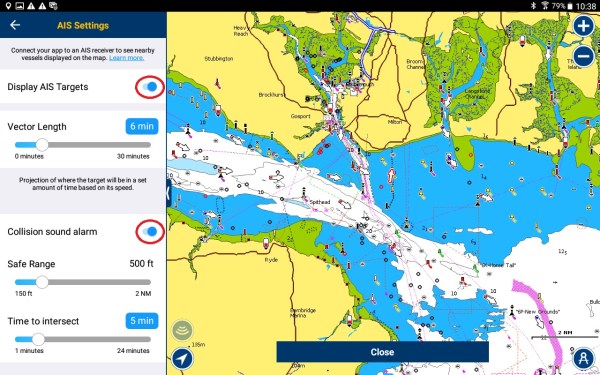
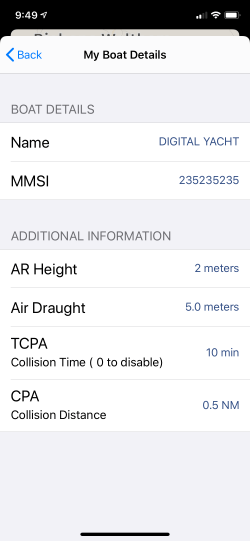
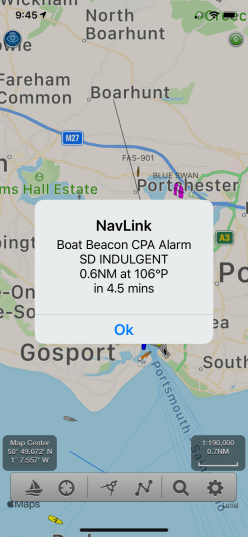
Then, toggle the button next to Collision Avoidance and you can now configure CPA and TCPA alarms. Your tablet or smartphone can set off a very loud audible alarm.
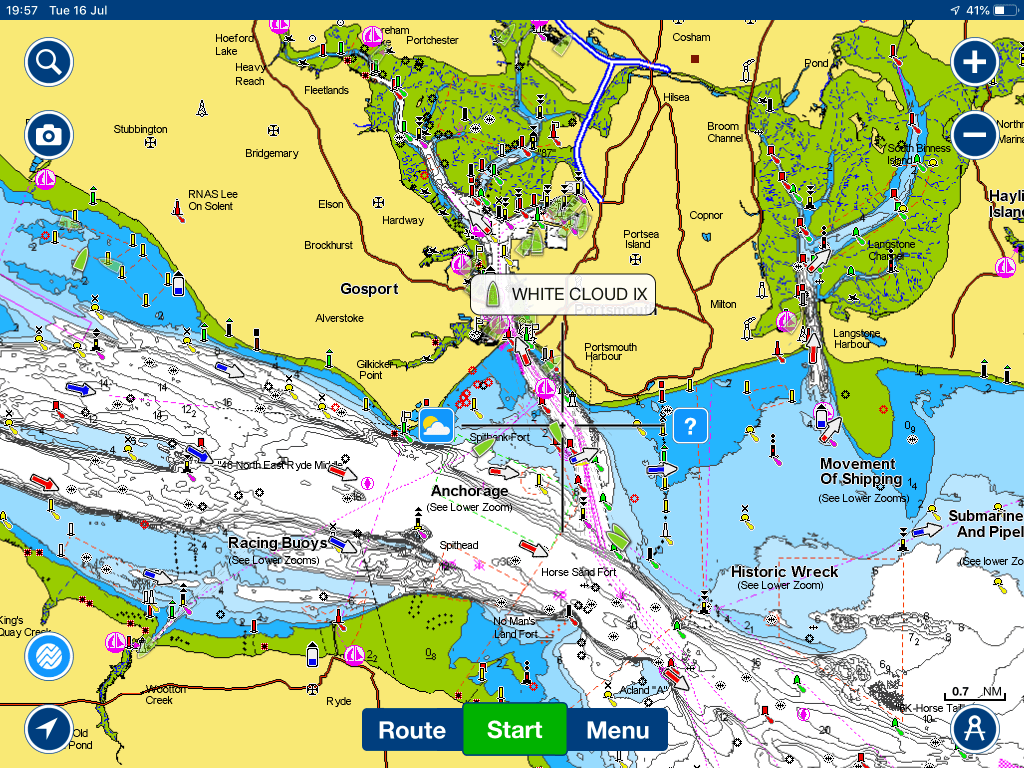
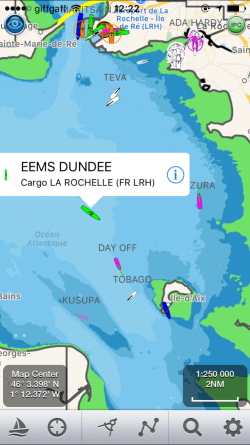
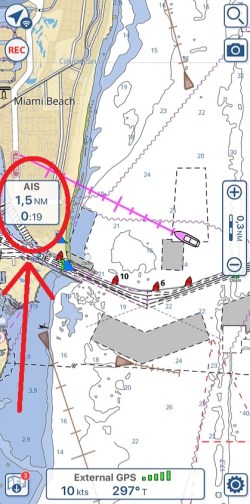
Now, go back to the main map to see AIS targets.
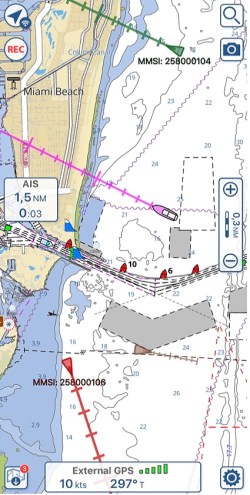
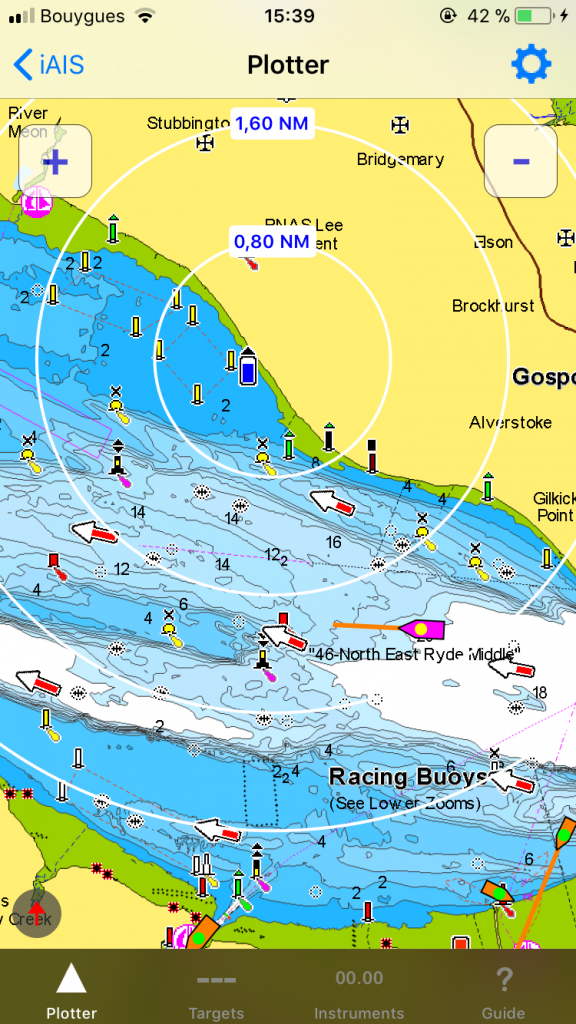
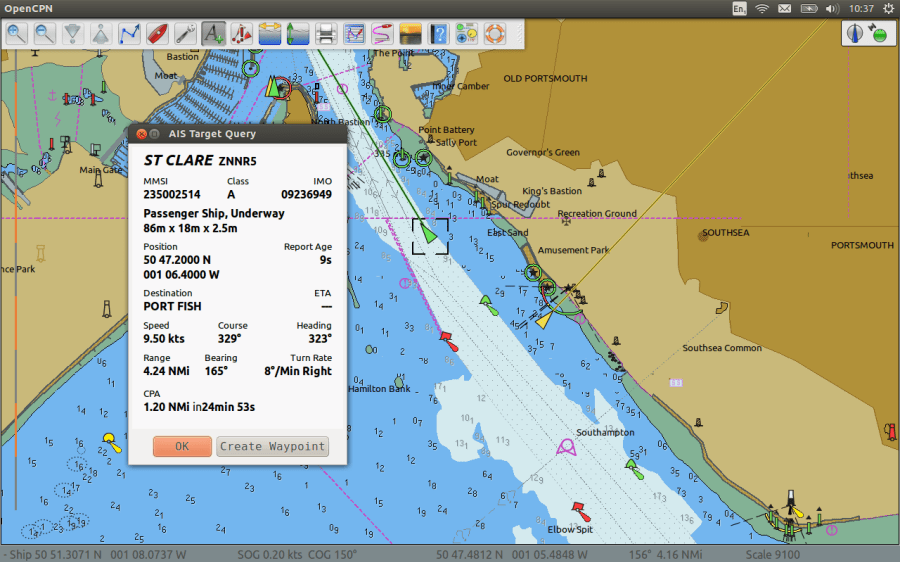
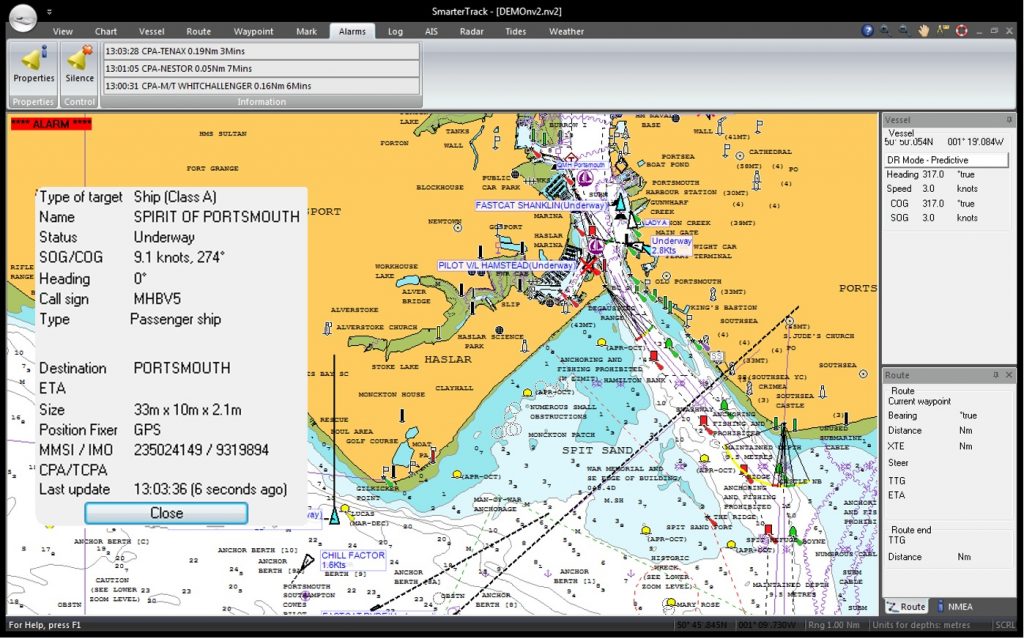
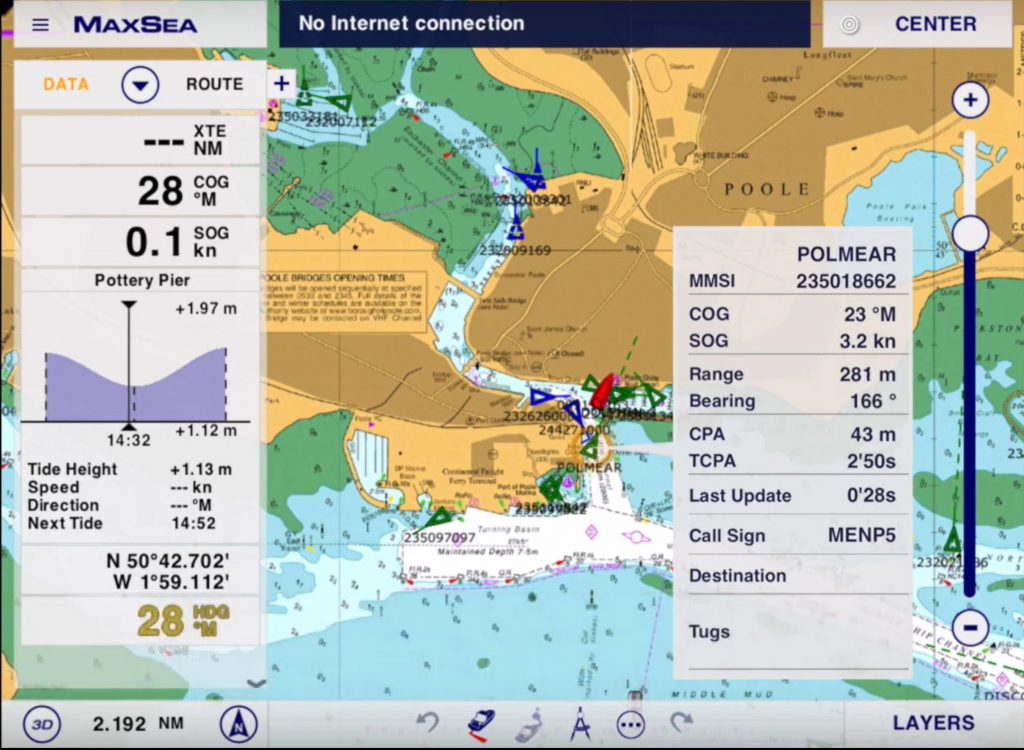
On the left side of the map, you will now have an AIS box showing in real time the distance and time to collision with the nearest AIS boat target. This box turn to flashing red when the collision is imminent according to the setting you predefined in the AIS setting page.
If you click on the box, you will get a list of the AIS targets (list that you can order by CPA, distance or by name).
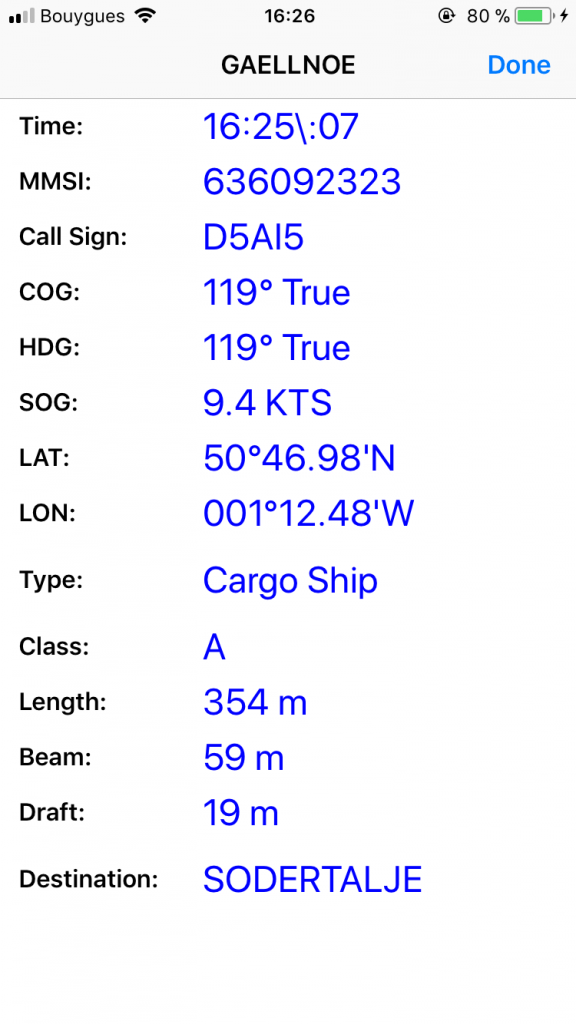
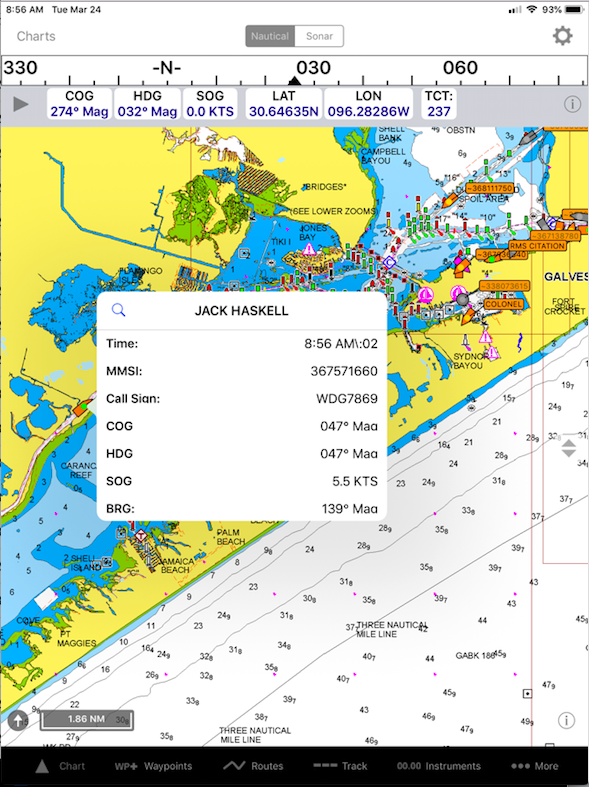
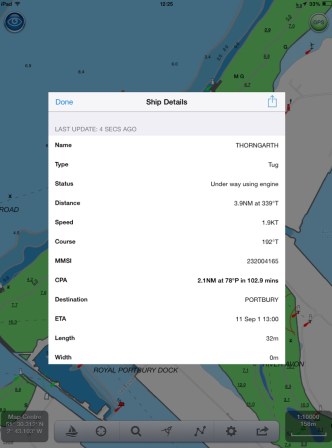
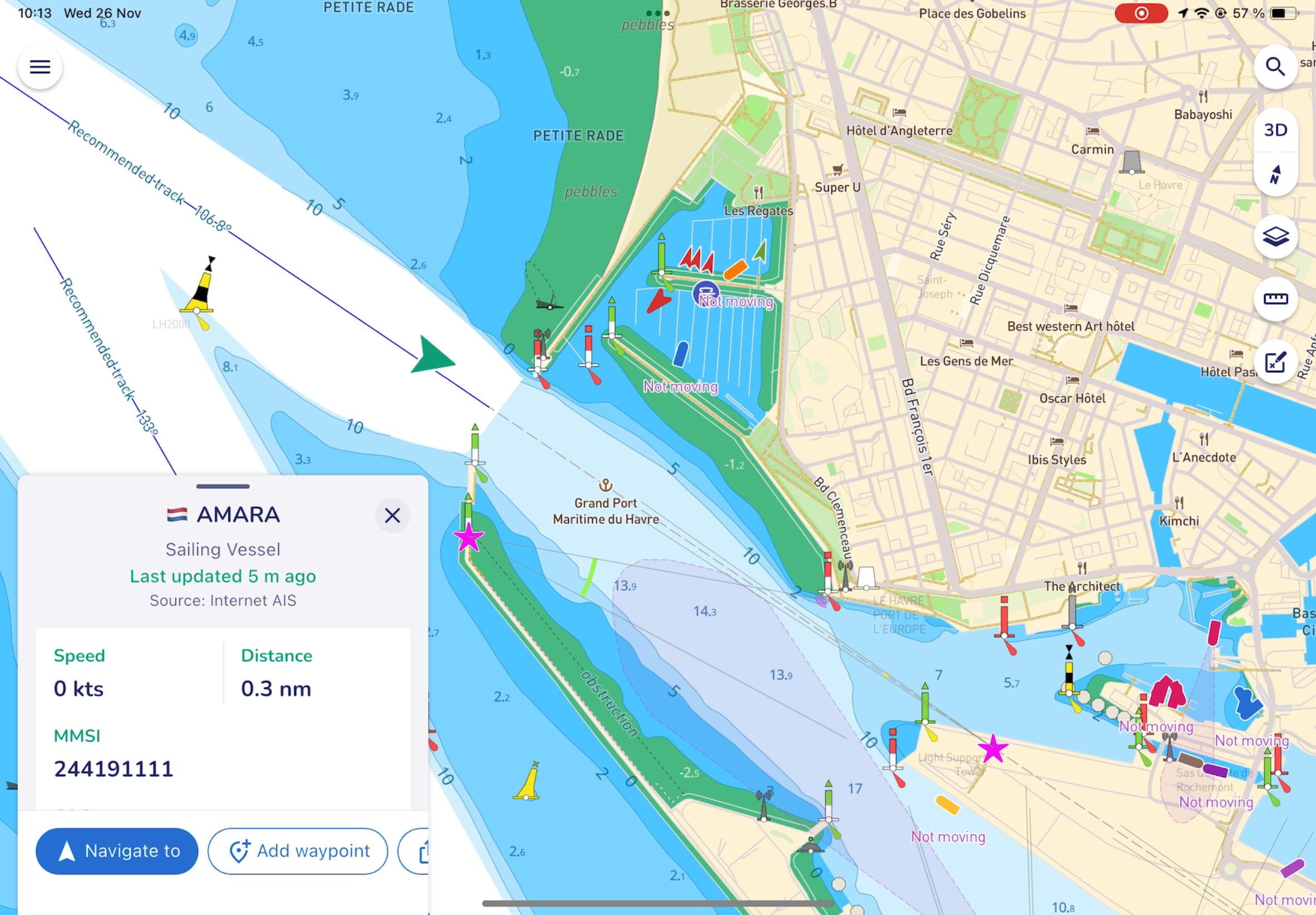
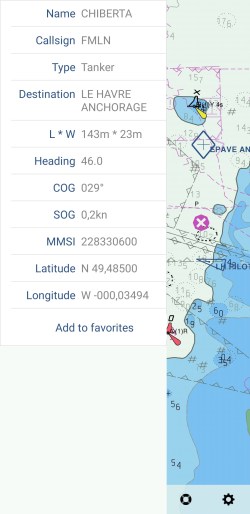
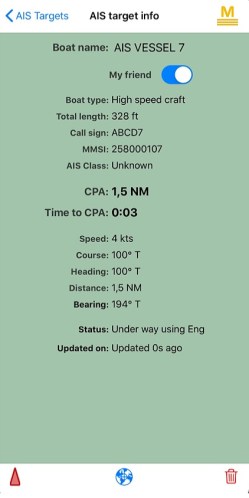
Touch a target on the map or on the “i” icon in the AIS targets list.
A page will pop up, and by clicking the red triangle icon at the bottom, this boat will become your main target and will be displayed in red on the map.
You can also set this boat as your friend, and it will be displayed in green on the map.
Go back to the map and now your targets will be displayed in red, green or brown if you have selected a target as your main target or friend.