
f you are experiencing slow or unreliable Wi-Fi performance with your 4GXtream, changing the Wi-Fi channel can help reduce interference, particularly on the 2.4 GHz network.
The 4G/5G Xtream provides both 2.4 GHz and 5 GHz Wi-Fi networks. The 2.4 GHz band has fewer available channels and is often more congested because many older devices still use it.
Where possible, connect newer devices to the 5 GHz network, which generally provides faster speeds and less interference. For devices such as Smart TVs and streaming devices, a wired Ethernet connection can provide even better performance.
Changing the 2.4 GHz Wi-Fi channel
If you have devices that only support 2.4 GHz, you can select a less congested Wi-Fi channel:
1.Perform a Wi-Fi survey to identify which channels are least congested in your location. For more information about Wi-Fi congestion and how to perform a Wi-Fi survey, see our guide: Wi-Fi Congestion and Interference.
2. Log in to the 4GXtream web interface.
3. Go to NETWORK > WIRELESS > RADIO.
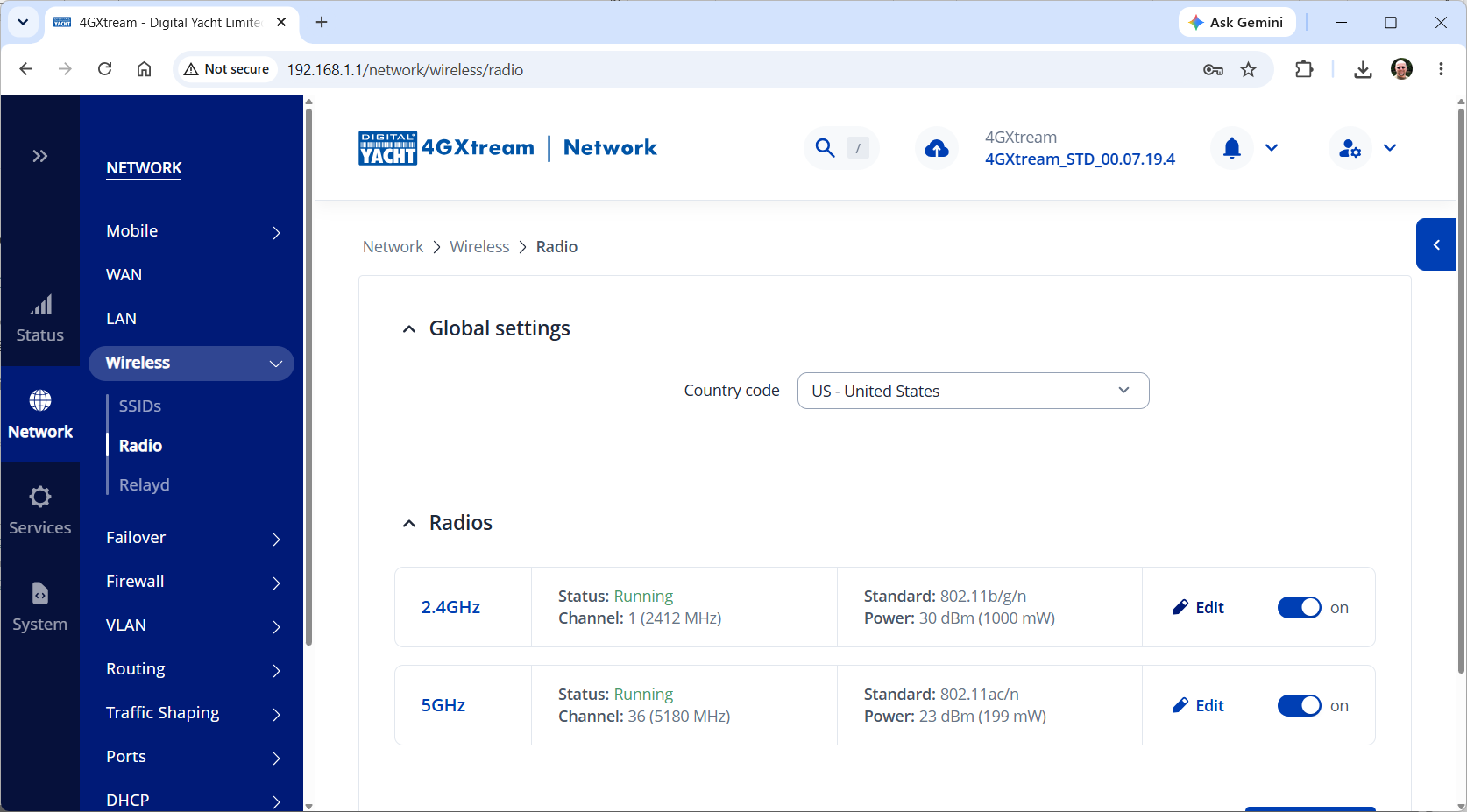
4. Click EDIT on the 2.4 GHz Wi-Fi network.
5. Set the Wi-Fi Mode to N.
6. Open the Channel drop-down menu and select the least congested channel identified during your Wi-Fi survey.
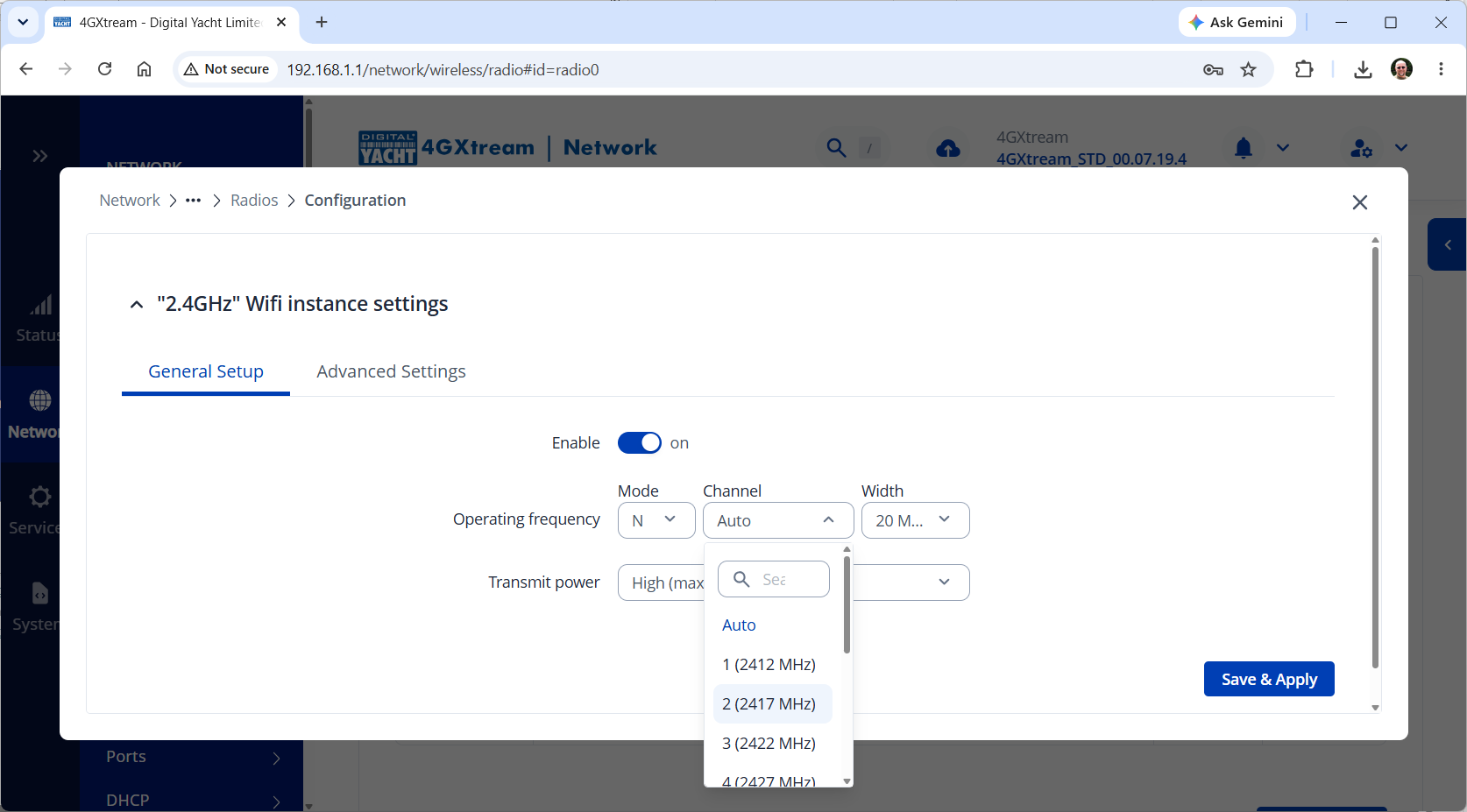
7. Click SAVE & APPLY.
Allow approximately 30–60 seconds for the new settings to take effect.
After changing the channel, test your Wi-Fi connection again. If performance is still poor, check for other sources of Wi-Fi interference or, where possible, use the 5 GHz network.